

Every developer has lived through the same nightmare: the app works perfectly on your laptop, you deploy it, and it immediately breaks. A library version differs. An environment variable is missing. The server runs a different operating system. You mutter the famous last words of software development — “but it works on my machine” — while everyone stares at you. So what is docker, and why do developers treat it like the cure for this exact disease? In short: Docker packages your application together with everything it needs to run — the code, the runtime, the libraries, the settings — into a standardized unit called a container. That container runs identically everywhere: your laptop, your teammate’s computer, the production server. The “works on my machine” problem doesn’t get managed. It gets eliminated.
Docker has become one of those tools that quietly underpins modern software development. It powers how applications are built, tested, and deployed at companies of every size, from two-person startups to the largest tech firms on earth. And yet most explanations of it drown beginners in jargon — images, registries, orchestration, daemons — before answering the basic question. This guide takes the opposite approach. We’ll start with the intuition, build up the vocabulary one piece at a time, run a real container on your machine, and flag the mistakes every beginner makes. No prior DevOps knowledge required.
What Is Docker, Really?
At its simplest, Docker is a platform for building, shipping, and running applications inside containers. A container is a lightweight, self-contained package that holds your application and everything it depends on. Think of it like a lunchbox: your sandwich (the app) travels together with the napkin, the drink, and the utensils (the dependencies) it needs, so nothing is missing when you open it at the park.
The technical definition adds precision: containers virtualize the operating system rather than the hardware. Your container shares the host machine’s operating system kernel but runs in an isolated user space with its own filesystem, its own networking, and its own process tree. This is what makes containers radically lighter than the older alternative, virtual machines — a comparison we’ll unpack shortly.
Docker itself is the tooling around this idea: the engine that runs containers, the format for defining them (the Dockerfile), the registry for sharing them (Docker Hub), and the command-line interface you use to control it all.
Here’s the mental model to carry through this entire guide: before containers, deploying software was like moving house by carrying individual items — the couch, the lamps, the dishes — and hoping they all fit and nothing broke in transit. Docker is the moving truck with standardized boxes. You pack once, the boxes are sealed, and they arrive intact wherever the truck goes.
The Shipping Container Analogy That Explains Everything
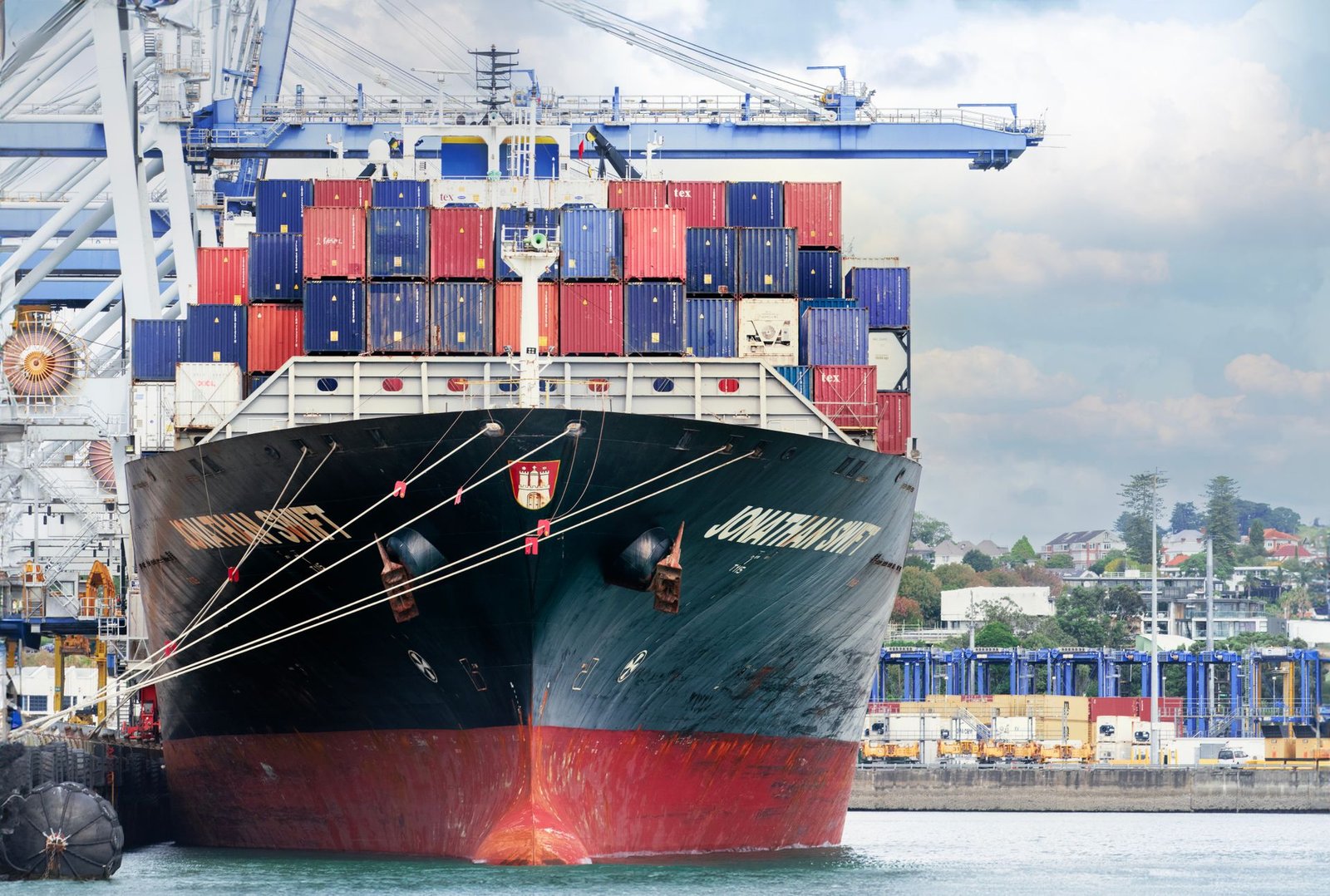
The analogy isn’t mine — it’s the industry’s, and it’s so good that Docker named itself after dock workers. Before the 1950s, shipping cargo was chaos. Every port loaded goods differently: crates, barrels, sacks, each handled by hand, each requiring custom stowage. Loading a ship took days, damage was constant, and theft was easy. Then came the standardized shipping container — one box, one size, stackable, crane-compatible everywhere on earth. Suddenly any cargo could travel on any ship to any port, and global trade exploded.
Software deployment had the identical problem. Every server was a unique snowflake: different operating system versions, different installed libraries, different configurations applied by hand over the years. Deploying an application meant carefully reproducing an environment, and the tiniest difference — a patch version here, a missing package there — could break everything. Developers and operations teams spent enormous energy on environment management instead of building features.
Docker containers are the standardized box for software. You define exactly what’s inside — the base operating system layer, the language runtime, your dependencies, your code, your configuration — and that definition travels with the application. Any machine running Docker can run your container, and it behaves identically because the environment inside the box never changes. That single insight is responsible for Docker’s entire success.
Docker’s Building Blocks: Images, Containers, and the Engine
Three concepts form the core vocabulary. Learn these and Docker stops being mysterious.
Images are the blueprints. An image is a read-only template containing everything needed to run your application: the operating system files, the runtime, the libraries, and your code. Images are built in layers — each instruction in your Dockerfile adds one layer on top of the previous ones. Layers are cached and shared, which is why downloading a new version of an image is fast: Docker only fetches the layers that changed. You can think of an image like a recipe card: it describes exactly how to produce the dish, but it isn’t the dish.
Containers are running instances of images. If the image is the recipe card, the container is the actual meal on the table. You can start many containers from the same image — five copies of your web app, each isolated from the others. Containers are ephemeral by design: you can stop them, delete them, and start fresh ones in seconds. Any data you want to keep beyond a container’s lifetime goes in volumes, Docker’s mechanism for persistent storage that lives outside the container’s writable layer.
The Docker Engine is the runtime that makes it all work. It’s the background service (the daemon) on your machine that builds images, starts and stops containers, and manages networking and storage between them. You interact with it through the Docker CLI — commands like docker build, docker run, and docker ps — or through Docker Desktop, the graphical application that bundles the engine with a friendly interface for Mac and Windows users.
Two more pieces complete the picture. The Dockerfile is the text file where you define your image — a short list of instructions like “start from this base image, copy in my code, install these dependencies, run this command.” Docker Hub is the public registry where images are shared: you can pull official images for Python, Node.js, Postgres, Nginx, and thousands of other tools instead of building everything from scratch. It’s like an app store for application environments.
Docker vs Virtual Machines: What’s the Difference?
Beginners often confuse containers with virtual machines (VMs), because both promise isolation. The difference is what gets virtualized, and it matters enormously.
A virtual machine virtualizes hardware. Each VM runs a complete guest operating system — its own kernel, its own drivers, its own everything — on top of a hypervisor that emulates the physical machine. This is powerful but heavy: a single VM typically consumes gigabytes of disk and hundreds of megabytes of RAM just for the OS, and booting one takes minutes. Running ten VMs means running ten full operating systems.
A container virtualizes the operating system instead. Containers share the host’s kernel and only package the application layer above it — the libraries, binaries, and code that differ between applications. The result is dramatic: containers start in milliseconds to seconds, each one adds only megabytes of overhead, and you can comfortably run dozens or hundreds on a single machine. A useful rule of thumb is that containers are to VMs what apartments are to houses — many independent living spaces sharing one building’s foundation, each with its own locked door.
This doesn’t mean VMs are obsolete. VMs provide stronger isolation — a separate kernel means a kernel-level exploit in one VM can’t easily reach another — so they’re still the choice for untrusted workloads or entirely different operating systems. But for the everyday job of packaging and running applications consistently, containers won, and it’s not close.
Why Developers Love Docker
Docker’s popularity isn’t marketing — it solves pains developers feel daily. Here’s what it actually delivers.
“It works on my machine” becomes irrelevant. The container includes the entire environment, so the gap between development and production collapses. New team members don’t spend their first day installing dependencies and debugging environment issues — they pull the image and run it. Onboarding that used to take days takes minutes. This consistency extends to CI/CD pipelines too: the same container image that passed your tests is the one that gets deployed, so there are no last-minute surprises from environment drift.
Isolation without the weight. Each container gets its own filesystem, network interfaces, and process space. Your app’s dependencies can’t conflict with another app’s dependencies because they live in separate boxes. Need to run two projects that require different versions of the same database? Run two containers — no version managers, no conflicts.
Reproducibility and version control for environments. A Dockerfile is a version-controlled, reviewable, exact recipe for your environment. Combined with Git workflows (see our Git vs GitHub explained guide), Docker gives you infrastructure you can track, review, and roll back like code.
Speed of iteration. Building, starting, stopping, and destroying containers takes seconds. Experiment freely: try a new database version in a container, and if it doesn’t work, delete it — your machine is untouched. You stop being precious about environments because environments are cheap.
Portability across clouds. Because a container runs identically anywhere Docker runs, you’re not locked to a specific cloud provider’s way of doing things. Move from AWS to Google Cloud to your own servers, and your containers come along unchanged. When those containerized services need to talk to each other, understanding how APIs work will help you design those connections properly. That portability is a strategic superpower for businesses and a practical convenience for developers.

Your First Docker Container: A Hands-On Walkthrough
Enough theory — let’s run something. You’ll need Docker Desktop installed (free for personal use), which is available for Mac, Windows, and Linux. The installer walks you through setup; on most machines it takes about ten minutes.
Step 1: Verify the installation. Open a terminal and run:
docker --version
docker run hello-world
The hello-world image is Docker’s traditional first run. Docker downloads the tiny image, starts a container from it, and the container prints a confirmation message. If you see that message, your engine works.
Step 2: Run a real web server. This is where it gets satisfying:
docker run -d -p 8080:80 --name my-website nginx
Let’s decode this. docker run starts a container. -d runs it in the background (detached). -p 8080:80 maps port 8080 on your machine to port 80 inside the container. --name my-website gives it a friendly name. nginx is the image — Docker pulls the official Nginx web server image from Docker Hub automatically. Now open your browser to http://localhost:8080 and you’ll see Nginx’s welcome page. You just deployed a web server without installing anything except Docker.
Step 3: Inspect and stop. Run docker ps to see your running containers, docker logs my-website to see their output, and when you’re done:
docker stop my-website
docker rm my-website
The container is gone, but your machine is exactly as it was — nothing was installed, nothing lingers. That disposability is the whole philosophy in miniature.
Step 4: Peek at a Dockerfile. Create a folder with a file named Dockerfile (no extension) containing:
FROM nginx:alpine
COPY index.html /usr/share/nginx/html/
Add an index.html with any content, then build and run your own image:
docker build -t my-first-image .
docker run -d -p 8080:80 my-first-image
You just built a custom image from a two-line recipe and deployed your own content. Every production Docker workflow is a scaled-up version of exactly this loop: write a Dockerfile, build an image, run containers from it.
Going further. The natural next steps are Docker Compose — a tool for defining multi-container applications (like a web app plus its database) in a single YAML file — and mounting volumes so your data survives container restarts. A classic exercise is running a Postgres database in a container for local development; if you’re learning databases alongside, our SQL basics guide pairs well with a containerized Postgres you can experiment on freely.
5 Beginner Mistakes to Avoid
Treating containers like VMs. Beginners often SSH into containers and install things by hand, or run multiple services in one container. Don’t. Containers should be disposable and single-purpose: one process per container, configured through the Dockerfile, never modified by hand. If you find yourself “fixing” a running container, stop — fix the Dockerfile and rebuild instead. The container is cattle, not a pet.
Storing data inside containers. Container filesystems are ephemeral — when the container is deleted, its data goes with it. Databases, uploaded files, and anything you can’t afford to lose belong in volumes or bind mounts, which live outside the container’s lifecycle. Learning this the hard way means losing data exactly once; learn it here instead.
Using the latest tag in anything serious. The latest tag is a moving target — it points to whatever the newest build is, which changes without warning. Your build works today and breaks tomorrow because the underlying image updated. Pin specific versions (nginx:1.25, python:3.12) in every Dockerfile you care about. Reproducibility requires specificity.
Running everything as root. By default, processes in containers run as the root user, which is a security risk — a container breakout as root is far worse than as an unprivileged user. Production Dockerfiles should create and switch to a non-root user. It’s a few extra lines and a meaningful security improvement.
Bloated images. Beginners copy their entire project directory — including Git history, node_modules, and OS-specific junk — into images, producing multi-gigabyte monsters that are slow to build, push, and deploy. Use a .dockerignore file (Docker’s version of .gitignore), leverage multi-stage builds to leave build tools out of the final image, and prefer slim base images like Alpine. Small images are faster, cheaper, and more secure.
Key Takeaways
- What is docker, in one sentence: a platform for packaging applications with everything they need into standardized containers that run identically anywhere.
- Containers virtualize the operating system (sharing the host kernel), making them dramatically lighter and faster than virtual machines, which virtualize hardware.
- The core vocabulary is small: images are blueprints, containers are running instances of images, Dockerfiles define images, and Docker Hub is where images are shared.
- Docker eliminates “works on my machine” by shipping the environment with the app — onboarding, testing, and deployment all become consistent and reproducible.
- Your first container is minutes away: install Docker Desktop, run
docker run hello-world, then serve a real website with onedocker runcommand. - Beginner pitfalls to avoid: hand-modifying containers, storing data inside them, using the
latesttag, running as root, and building bloated images.
Frequently Asked Questions
Is Docker free?
Docker Desktop is free for personal use, education, and small businesses, with paid tiers for larger companies. The Docker Engine itself — the core open-source technology — is free for everyone. The vast majority of learning, side projects, and small-team work costs nothing.
Do I need to know Linux to use Docker?
It helps, but it’s not required to start. Docker Desktop on Mac and Windows hides most of the Linux plumbing — containers run inside a lightweight Linux VM that Docker manages for you. You’ll pick up basic terminal commands as you go. As you go deeper — writing Dockerfiles, debugging networking — some Linux familiarity pays off, but don’t let it gate your start.
Can Docker run on any computer?
Docker runs on Mac, Windows, and Linux, but your machine needs to support hardware virtualization (most machines from the last decade do; it’s sometimes disabled in BIOS settings). For learning and development, any reasonably modern laptop works — if yours handles everyday development tasks, it handles Docker. Our guide to the best laptops for programming covers what to look for if you’re shopping.
What’s the difference between Docker and Kubernetes?
Think of it this way: Docker is the shipping container, Kubernetes is the entire port logistics operation. Learn Docker first; Kubernetes only makes sense once you’re managing containers at a scale where doing it by hand hurts.
Will containers replace virtual machines?
No — they’ve settled into different roles. Containers dominate application packaging and deployment because they’re light and fast. VMs remain essential for strong isolation boundaries, running different operating systems, and hosting the infrastructure that containers themselves run on (most cloud containers run inside VMs). The modern stack uses both: VMs for the foundation, containers for the applications.
Conclusion
So what is docker? It’s the shipping container for software — a standardized, self-contained package that lets your application travel from your laptop to any server on earth without changing. That one idea, executed well, eliminated the most tedious category of problems in software deployment and reshaped how the industry builds and ships applications.
The best part is how accessible it is. You don’t need a DevOps title or a Linux certification to benefit — install Docker Desktop, run the commands in this guide’s walkthrough, and you’ll have done the fundamental thing: packaged software so it runs identically everywhere. From there, the path unfolds naturally: Dockerfiles for your own projects, Compose for multi-service apps, and eventually the orchestration tools that manage containers at scale. The container revolution started with a simple frustration — “but it works on my machine” — and ended it. Your development workflow can be next.