

Think about everything connected to your home WiFi right now: laptops, phones, tablets, the TV, maybe a doorbell camera, a voice assistant, a thermostat. Every one of those devices trusts your network completely. Now think about the last time you changed your router’s password. If you’re like most people, the answer is “never” — and that means your digital front door is secured with the password printed on a sticker on the box. Learning how to secure home network equipment isn’t paranoia; it’s basic home maintenance for the 21st century.
I learned this the hands-on way when I helped a neighbor figure out why their internet was crawling — turns out half the apartment building was on their open guest network. Since then I’ve secured dozens of home networks for friends and family, and the process is the same: about an hour of focused work, most of it waiting for firmware updates, and the result is a network dramatically harder to attack. This guide walks you through every step.
Why Your Home Network Deserves an Hour of Your Time
Your home network is the most trusted environment your devices know. Your laptop happily shares files with other devices on the same network. Your phone auto-connects without asking. Your smart TV, your printer, your security cameras — they all assume that anything on the local network is friendly. That trust is convenient, and it’s exactly what attackers exploit.
The threats are more real than most people think. An attacker who joins your WiFi — a neighbor guessing a weak password, someone who finds your network from the parking lot, or malware on one compromised device — can intercept unencrypted traffic, attack other devices on the network, and in some cases reach your router’s admin panel. From there, they can redirect your traffic, and you’d never know.
Smart home devices multiply the risk. That cheap smart plug or camera was built to a price point, not a security standard. Many have known vulnerabilities, weak default credentials, or no update mechanism at all. Security researchers routinely find that compromised smart devices become footholds — the attacker gets into the lightbulb, then moves laterally to the laptop with your tax returns. Your network is only as secure as its weakest connected gadget.
There’s also the quieter risk of your own router working against you: outdated firmware and enabled remote management are common on ISP-provided units that nobody ever checks. You don’t need to become a network engineer — you just need to spend one focused hour applying the steps below, and then mostly forget about it.
How to Secure Home Network Hardware: Start With the Router
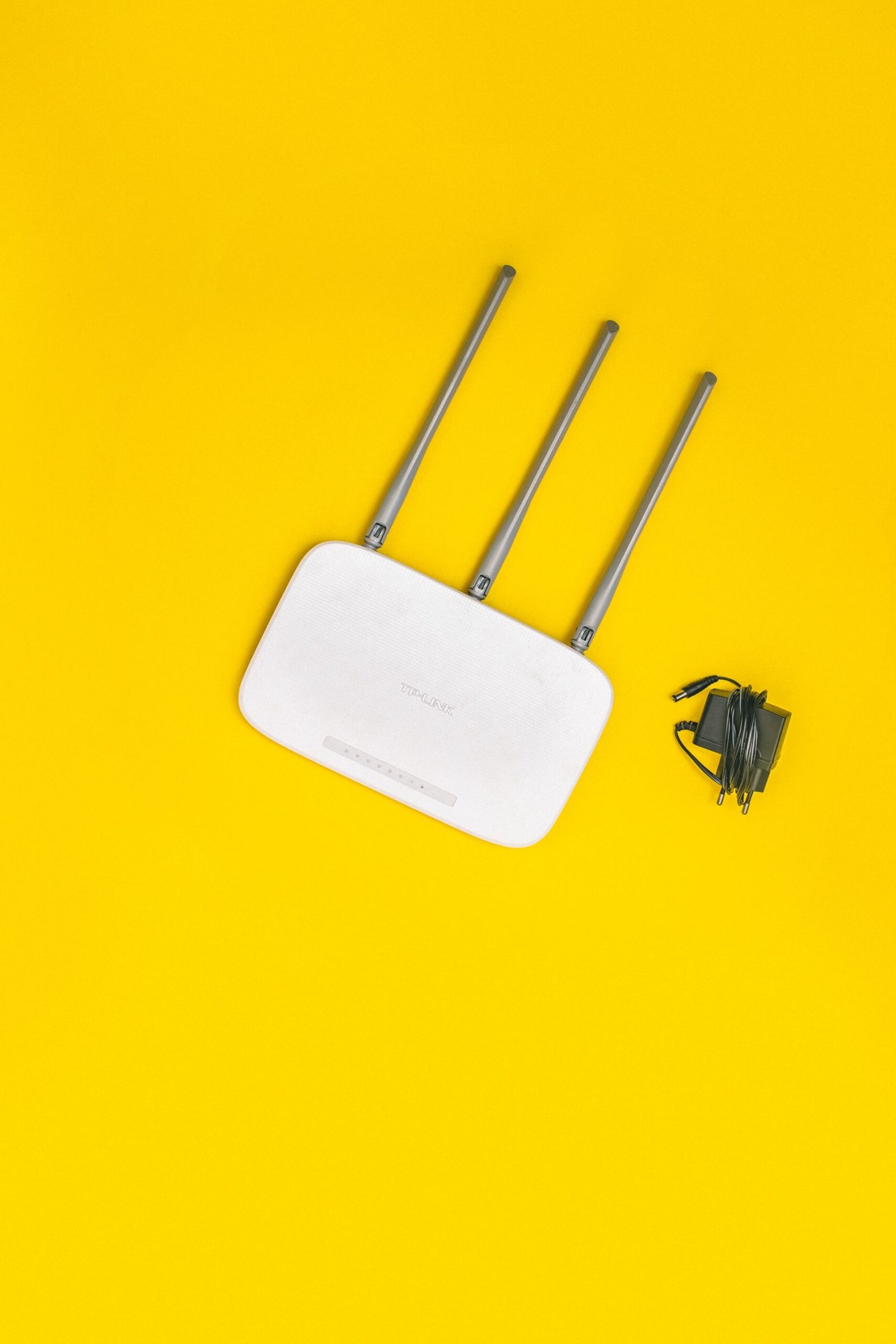
Everything begins at the router, because it’s the gatekeeper: every device’s traffic passes through it, and it controls who gets onto your network. Most people never log into theirs. Here’s how to take ownership.
Step 1: Log into your router’s admin panel. Connect to your network, then open a browser and enter your router’s address — commonly 192.168.1.1 or 192.168.0.1 (check the sticker on the router or your ISP’s documentation). You’ll be asked for admin credentials. If you’ve never changed them, they’re the factory defaults — often “admin/admin” or “admin/password” — which are publicly documented and the first thing any attacker tries.
Step 2: Change the admin password immediately. This is the password that controls the router itself, separate from your WiFi password. Make it long, unique, and store it in your password manager. If someone can’t log into your router, they can’t reconfigure your network, no matter what else they try.
Step 3: Update the firmware. In the admin panel, find the firmware update section and install the latest version. Router manufacturers patch security vulnerabilities in these updates, and an unpatched router is one of the most common footholds in home network attacks. If your router supports automatic updates, turn them on — set-and-forget is the goal. If your router is so old the manufacturer no longer releases updates, that’s your signal to replace it; an unpatchable router is a liability.
Step 4: Disable remote management (WAN-side admin). Many routers allow the admin panel to be accessed from the internet, not just your home network. Unless you have a specific reason to manage your router remotely, turn this off. There’s no benefit to exposing your router’s login page to the entire internet, and automated scanners probe for exactly this.
Step 5: Review connected devices. Most admin panels show a list of connected devices. Glance through it for anything you don’t recognize. An unknown device could be a neighbor on your WiFi, a forgotten gadget, or something worse. If you find intruders, that’s your cue to change the WiFi password (covered next) and investigate.
Write down what you changed — or better, save it in your password manager’s secure notes. Future you will thank present you when something needs troubleshooting.
Step-by-Step: Locking Down Your WiFi
With the router itself secured, now lock down the wireless network — the part attackers can reach without ever entering your home.
Step 1: Change your WiFi password to something strong. Your WiFi password is the main barrier between your network and the world. Make it long — twenty characters or more — and unique; your password manager can generate and store it. Yes, typing a long password into every device once is mildly annoying. Do it once, and you’re done for years. Avoid anything guessable: your address, your pet’s name, or the defaults are all effectively public information to anyone motivated.
Step 2: Use WPA3 encryption (or WPA2 if WPA3 isn’t available). In your router’s wireless settings, set the security mode to WPA3-Personal. If some older device can’t connect with WPA3, use WPA2/WPA3 transitional mode, or WPA2-Personal (AES) as the fallback. Never use WEP or WPA — both are broken and can be cracked quickly. Never run an open network without a password, not even “temporarily.”
Step 3: Give your networks sensible names. Change the default SSID (network name) from “NETGEAR-5G” or “XFINITY-1234” — defaults advertise your router model, which tells attackers exactly which vulnerabilities to try. Don’t use personally identifying names either (“TheSmithsHouse” or your address). Pick something neutral. And no, hiding your SSID (not broadcasting the name) isn’t real security — it’s trivially bypassed and just makes your own devices work harder.
Step 4: Turn off WPS. WiFi Protected Setup — the push-button or PIN method for connecting devices — has a well-known vulnerability in its PIN mode that allows brute-forcing. Disable WPS in your router settings and connect devices with the password instead. The button is convenient; it’s also a hole.
After making these changes, reconnect your devices with the new password. Start with the important ones — your computer and phone — then work through the rest. Keep a list; it’s satisfying to check off, and it doubles as an inventory of what’s on your network.
Setting Up a Guest Network (and Why You Should)
A guest network is a separate WiFi network, isolated from your main one, that you offer to visitors — and to your smart home devices. Most modern routers support it with a few clicks, and it’s one of the highest-value security steps you can take.
Why it matters: every device on your main network can potentially see and communicate with every other device. When your friend’s malware-infected laptop joins your main WiFi for the evening, it’s inside the trusted zone with your computers, your NAS, your printer. A guest network with client isolation keeps visitors’ devices in a sandbox: they get internet access and nothing else. They can’t see your computers, your shared files, or your smart devices.
The smart-device bonus: this is my favorite use of guest networks. Put your IoT gadgets — cameras, plugs, bulbs, voice assistants, the TV — on the guest/IoT network instead of your main one. These devices are the weakest security link in most homes, and isolating them means a compromised camera can’t reach your laptop. They still get the internet access they need to function. Some routers even offer a dedicated IoT network type with appropriate firewall rules; use it if yours does.
How to set it up: in your router’s admin panel, find Guest Network or Guest WiFi settings. Enable it, give it a distinct name (like “Home-Guest”), set a strong password (different from your main WiFi), and make sure “isolate clients” or “prevent guests from accessing local network” is enabled — this is the critical setting.
The routine: when visitors ask for WiFi, give them the guest password without hesitation. When you buy a new smart gadget, connect it to the guest/IoT network by default. Over time, your main network ends up containing only your trusted computers and phones — a much smaller attack surface.
Securing Your Smart Home Devices
Smart home devices deserve special attention because they’re simultaneously the most vulnerable and the least maintained devices in most homes. Here’s how to handle them.
Change default credentials on everything. Cameras, network storage, smart hubs — anything with a login — ships with default usernames and passwords that are publicly documented. The very first thing you do with a new device is change these. If a device doesn’t let you change its password, seriously consider whether you want it on your network at all.
Update firmware religiously. Check for updates when you set up a device and periodically afterward. Many devices have an auto-update option buried in their app — turn it on. For devices with no update mechanism, that’s a mark against them; factor it into future purchases.
Disable features you don’t use. That camera’s cloud upload, the voice assistant’s purchase feature, remote access on your NAS — every enabled feature is attack surface. Turn off what you don’t need. If you access your security cameras remotely, make sure that’s going through the manufacturer’s secure service or your own VPN, not through port forwarding you set up years ago and forgot.
Research before you buy. Before adding a new smart home device, spend five minutes checking the manufacturer’s security reputation: Do they publish security updates? Have they had major unpatched vulnerabilities? Do they support the device for years or abandon it? Cheap no-name devices with no update history are the ones that end up in botnets.
Consider a separate VLAN if your router supports it. Advanced routers let you create virtual LANs — fully isolated network segments with firewall rules between them. A VLAN for IoT devices is the professional-grade version of the guest network trick. It’s more work to set up, but for the enthusiast with dozens of devices, it’s the gold standard.
Audit periodically. Once or twice a year, review what’s connected. That old camera in the garage you stopped using? Unplug it or remove it from the network. Unused devices are forgotten vulnerabilities.
Advanced Steps Worth Taking
The basics above cover the vast majority of home network risk. These go further for those who want them.
Change your DNS to a privacy-respecting provider. Your ISP’s default DNS servers log every domain you look up. Switching to a provider with a strong privacy policy (and DNS-over-HTTPS support in your browser or OS) keeps your browsing metadata more private. Some routers let you set this network-wide so every device benefits.
Consider router-level ad and tracker blocking. Tools like Pi-hole block advertising and tracking domains for your entire network — a satisfying weekend project with real privacy benefits.
Disable UPnP unless you need it. Universal Plug and Play lets devices automatically open ports in your router’s firewall — convenient for gaming consoles and video calls, but it’s also a known attack vector, since malware can use it to poke holes in your firewall. If you don’t need it, turn it off; if you do (some games require it), understand the tradeoff.
Set up a VPN on the router for whole-network protection. Running a VPN client on your router encrypts all outbound traffic for every device — including ones that can’t run VPN software themselves, like smart TVs. The tradeoff is speed (the router’s processor becomes the bottleneck) and complexity. For most people, per-device VPNs are simpler; router-level is for the dedicated.
Keep a network inventory. A simple list — device, MAC address, which network it’s on, date added — turns “what is that unknown device?” from a mystery into a five-second check. Your router’s admin panel usually shows connected devices; reconcile it against your list occasionally.
Maintaining Your Home Network Security
Securing your network is a project; keeping it secure is a habit. The good news is the maintenance is minimal — a few minutes a few times a year.
Quarterly (15 minutes): check for router firmware updates, glance at the connected-devices list for anything unfamiliar, and confirm the guest network isolation is still enabled (firmware updates occasionally reset settings — verify after every update).
Twice a year: review your smart devices — remove anything unused, check for firmware updates on the rest, and change the guest WiFi password. Also review who has your WiFi passwords; the neighbor you gave it to three years ago probably doesn’t need permanent access.
Annually: reconsider your router itself. If it’s more than five years old or no longer receiving firmware updates, budget for a replacement. Router technology and security both move forward; running an abandoned router undoes everything else in this guide. Also rotate your main WiFi password yearly — it’s low cost since devices remember it.
When something changes: new roommate, new smart devices, a breakup, a contractor who needed WiFi — treat these as triggers to review. Change the guest password after visitors with extended access, and remove devices that left with their owners.
Teach the household the basics. The best-configured network is undone by a family member who plugs in a sketchy “WiFi booster” from a discount site or shares the main WiFi password with the whole neighborhood. A five-minute conversation — guest network for visitors, ask before adding new devices, tell me if the internet acts weird — covers it. Security is a household project, not a solo one.
Key Takeaways
- Your router is the gatekeeper: change its admin password, update firmware, and disable remote management.
- Use WPA3 (or WPA2-AES) with a long, unique WiFi password; never use WEP, WPA, or open networks.
- Set up an isolated guest network for visitors — and put smart home devices on it too.
- Smart devices are the weakest link: change defaults, update firmware, disable unused features, and research before buying.
- Turn off WPS and UPnP unless you specifically need them.
- Maintain with minimal effort: quarterly firmware checks, twice-yearly device audits, annual router reassessment.
- Keep a device inventory and teach the household the basics — security is a shared project.
- If your router no longer gets firmware updates, replace it; an unpatchable router is a liability.
Frequently Asked Questions
How often should I change my WiFi password?
Once a year for your main network is plenty if the password is strong and unique, plus immediately after any situation where it may have been widely shared — a party, a contractor visit, or a former roommate moving out. Rotate the guest network password more freely, since it’s designed for sharing.
Is hiding my WiFi network name (SSID) useful security?
No. Hidden networks are trivially discoverable with free tools, and hiding the SSID can cause connection issues with your own devices. It’s obscurity, not security — rely on WPA3 encryption and a strong password instead.
Do I really need a guest network?
Yes — it’s one of the highest-value steps in this guide. It isolates visitors’ devices (and your vulnerable smart gadgets) from your computers and files. Most modern routers enable it in a few clicks, and it costs nothing to run.
What’s the biggest home network security mistake?
Running a router with default admin credentials and outdated firmware. Automated scanners constantly probe for exactly this, and it gives an attacker full control of your network. The fix takes ten minutes: change the password and update the firmware.
Should I buy a new router for security?
If your current router still receives firmware updates and supports WPA2 or WPA3, it’s probably fine. Replace it if the manufacturer has abandoned updates, if it only supports broken encryption like WEP/WPA, or if it’s so old it can’t handle your devices. Security support lifespan matters more than raw speed.
Final Thoughts
Learning how to secure home network gear comes down to one truth: your network is the foundation everything digital in your home stands on, and foundations deserve attention. The steps in this guide — router admin locked down, WPA3 with a strong password, guest network for visitors and gadgets, firmware kept current — take an hour and protect you for years. Do it this weekend, save passwords in your manager, then get back to enjoying the WiFi instead of worrying about it.