

Your password was just stolen in a data breach. It’s sitting in a criminal database right now, bundled with your email address, waiting to be tried against your bank, your email, your social media. Scary? Here’s the thing that should actually reassure you: if you understand what is two factor authentication and have it turned on, that stolen password is nearly useless to the thief. 2FA is the reason a leaked password doesn’t have to mean a hacked account.
I’ve set up two-factor authentication on dozens of accounts — mine, my family’s, and for friends who asked for help after a scare. I’ve also seen what happens without it: the account takeovers, the frantic recovery processes, the “how did this happen” conversations. This guide covers everything: how 2FA works, which methods are actually secure (they’re not all equal), how to set it up without locking yourself out, and the mistakes that undo its protection.
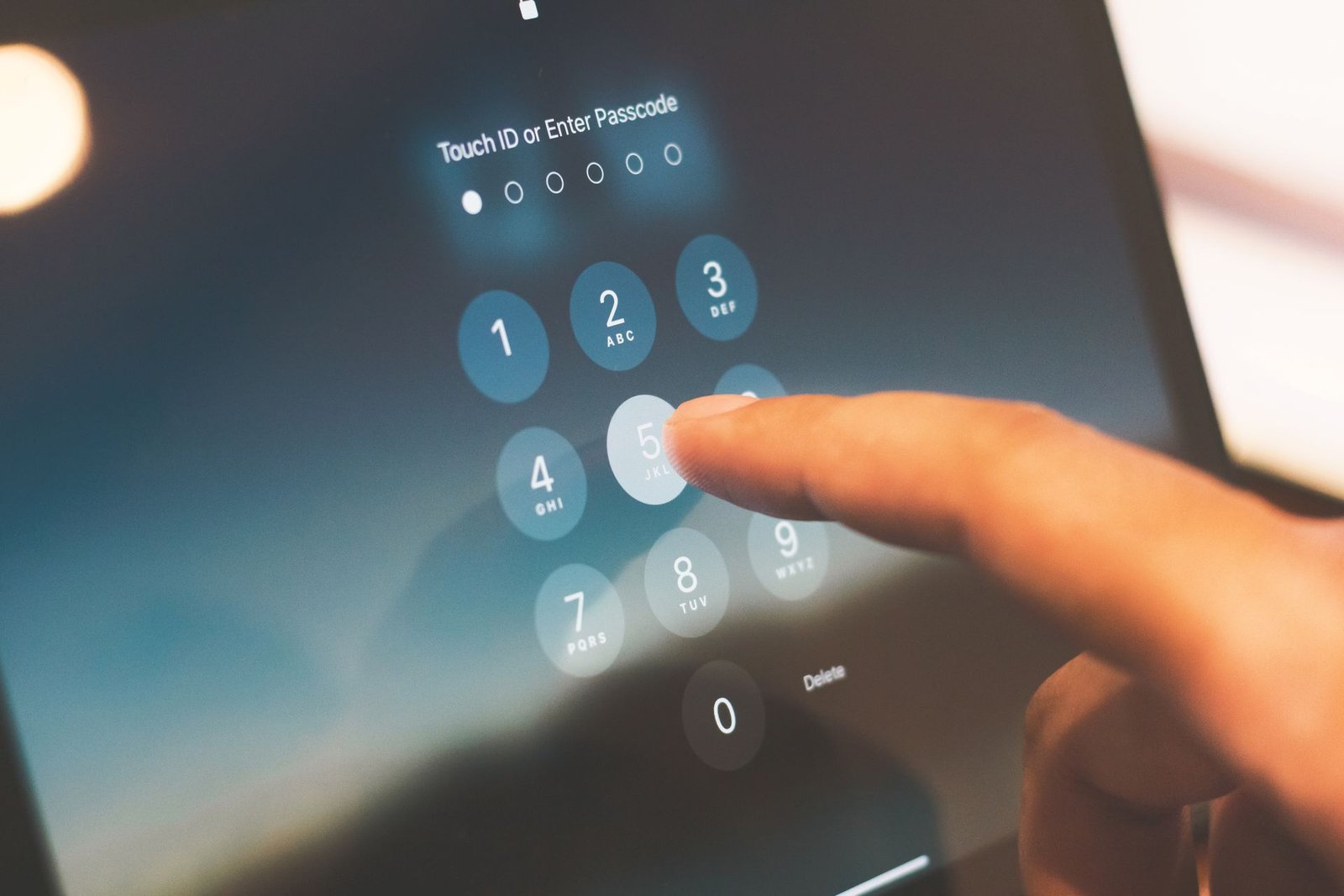
What Is Two Factor Authentication?
Two-factor authentication is a login process that requires two different types of proof that you are who you claim to be. The first factor is almost always something you know — your password. The second factor is something else entirely: something you have (like your phone) or something you are (like your fingerprint). An attacker who steals your password has only the first factor, and without the second, they’re stuck at the door.
The idea isn’t new. Your bank card has worked this way for decades: the card is something you have, the PIN is something you know. Lose the card and the finder still needs your PIN; someone learns your PIN and they still need the card. Online 2FA applies the same principle to your digital accounts.
You’ll also see the terms 2FA, MFA (multi-factor authentication), and two-step verification. Strictly speaking, MFA is the broader category — two-factor is MFA with exactly two factors, and some high-security setups use three. “Two-step verification” is mostly a branding term some companies use for the same concept. For everyday purposes, they all mean: password plus an additional check.
Why does this matter so much? Because passwords leak constantly. Breaches expose billions of credentials, phishing tricks people into handing them over, and reuse means one leak compromises many accounts. 2FA breaks this chain: even with your password in hand, an attacker needs your physical device or your biometrics too — something far harder to steal remotely at scale.
How 2FA Actually Works: The Three Factors
Security professionals classify authentication factors into three categories. Understanding them helps you evaluate which 2FA methods are strong and which are theater.
Something you know — passwords, PINs, security questions. This is the weakest category because knowledge can be stolen, guessed, phished, or leaked in breaches. Security questions are particularly bad: your mother’s maiden name or your first pet are often findable on social media. Knowledge factors are fine as one factor, never as the only factor.
Something you have — your phone, an authenticator app, a hardware security key, a smart card. This is the workhorse of 2FA. “Have” factors are strong because stealing them requires physical proximity or device compromise, which doesn’t scale for attackers the way password databases do. Most 2FA you encounter — codes from an app, a tap on a hardware key — lives in this category.
Something you are — fingerprints, face recognition, voice patterns. Biometrics are convenient because you can’t forget them, and they’re reasonably hard to forge casually. But they have a unique weakness: you can’t change them. If a fingerprint template is compromised, you don’t get a new finger. That’s why biometrics work best as a convenience layer (unlocking your phone, which then provides the “have” factor) rather than as a standalone remote authentication method.
True two-factor authentication combines factors from different categories — typically know + have. Two passwords, or a password plus a security question, is not 2FA at all; it’s just two weak knowledge factors. When evaluating a service’s 2FA options, check that the second factor is genuinely a different category.
The Different Types of 2FA, Ranked by Security
Not all second factors are created equal. Here’s the honest ranking, from strongest to weakest, so you can choose well when a service offers options.
1. Hardware security keys (strongest). Small USB or NFC devices — from makers like Yubico and Google’s Titan line — that you tap or touch to approve logins. They use public-key cryptography and, critically, they verify the site’s identity before responding, which makes them resistant to phishing: a key simply won’t authenticate to a fake lookalike site. This is what security professionals use for their own most important accounts. The downsides are cost (you’ll want two — one primary, one backup) and the need to carry the device.
2. Authenticator apps. Apps like Google Authenticator, Microsoft Authenticator, Authy, or the authenticator built into many password managers generate time-based one-time codes that change every 30 seconds. They’re free, work offline, and are far more secure than SMS. The shared secret is set up once via QR code and never travels over the network again. This is the sweet spot for most people: strong security with zero cost.
3. Push-based approval. Your phone gets a notification asking “Are you trying to log in?” and you tap Approve. Convenient and reasonably secure, since approval requires your unlocked device. The weakness is prompt fatigue: attackers who have your password can spam login attempts until you tap approve out of annoyance or confusion. Always check that a push request matches an action you actually initiated.
4. Email-based codes. A code sent to your email address. Better than nothing, but your email is often the master key to all your other accounts (via password resets), so its security determines everything downstream. If your email itself lacks strong 2FA, email codes elsewhere are built on sand.
5. SMS text codes (weakest). A code sent by text message. This is the most common 2FA method and the least secure: vulnerable to SIM swapping (where an attacker convinces your carrier to move your number to their SIM), interception, and SS7 network weaknesses. SMS 2FA still blocks the vast majority of automated attacks — use it if it’s the only option — but prefer anything above it on this list.
The practical rule: use the strongest method each service offers, which for most people means authenticator apps for important accounts and hardware keys for the crown jewels (email, password manager, banking).
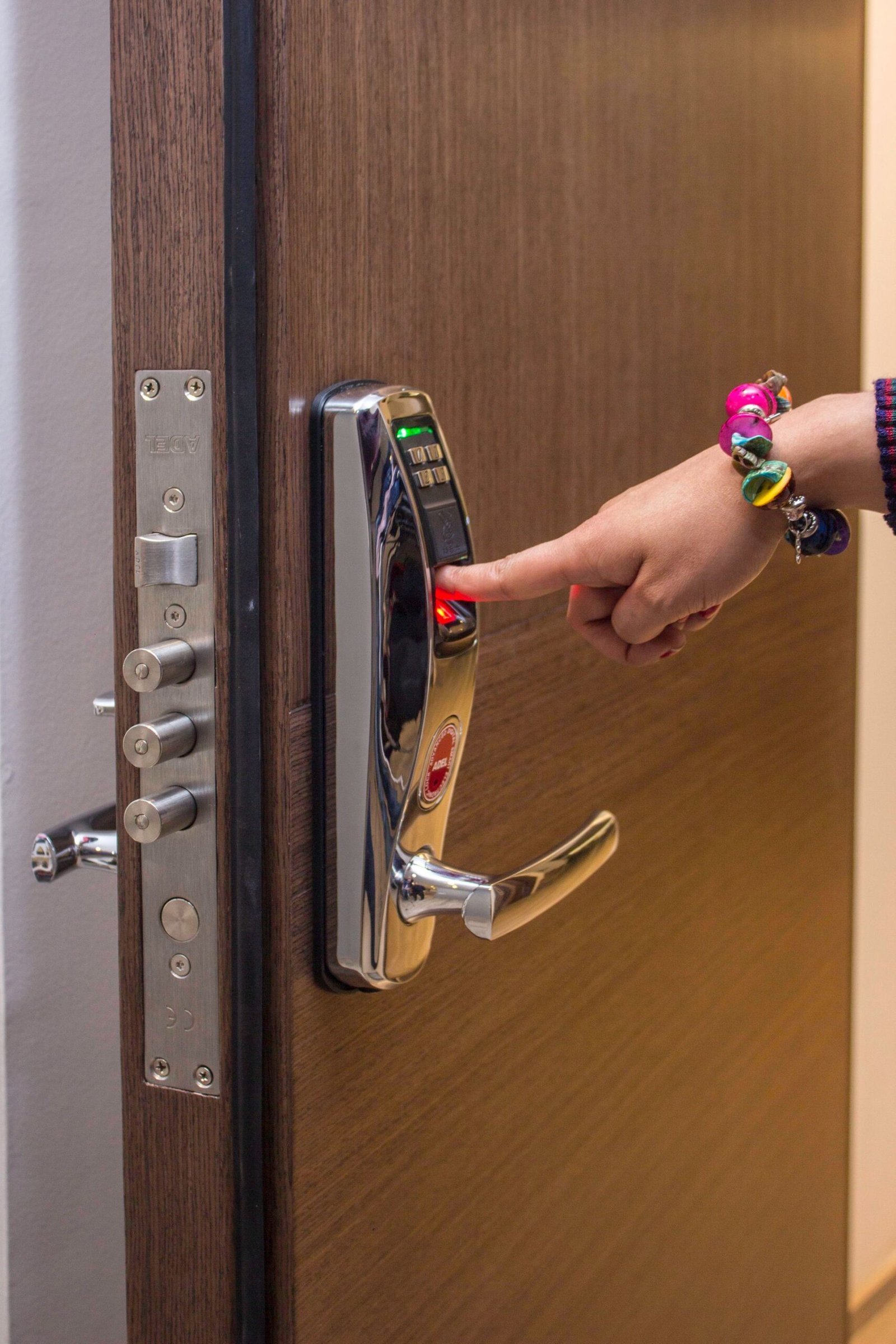
Why SMS Codes Are the Weakest Link
SMS-based 2FA deserves its own section because it’s simultaneously the most common method and the one I most want you to upgrade away from. Let me explain the attacks plainly so you understand it’s not theoretical.
SIM swapping is the big one. An attacker gathers enough personal information about you — from breaches, social media, or phishing — to impersonate you to your mobile carrier. They claim your phone is lost and ask to activate a new SIM. If the carrier’s representative is fooled (and they often are), your phone number moves to the attacker’s device. Now every SMS code — for your email, your bank, your crypto exchange — goes to them. Victims often discover it when their own phone suddenly loses service.
Interception and network attacks are the technical layer: SMS was never designed as a secure channel, and determined attackers have ways to intercept messages. This requires more sophistication than SIM swapping, but it happens.
The account-recovery trap is subtler: many services let you fall back to SMS when other 2FA methods fail. An attacker who SIM-swaps you can then use “lost my authenticator” recovery flows to downgrade your security to SMS. When setting up 2FA, check whether SMS remains as a backup method and remove it if you can do so safely.
None of this means SMS 2FA is worthless — it still defeats credential stuffing and phishing at scale, which is most of what targets ordinary people. The message is about priority: enable SMS 2FA today if that’s all that’s offered, but migrate important accounts to an authenticator app this week. It’s a fifteen-minute upgrade per account that closes the biggest hole.
How to Set Up 2FA on Your Important Accounts
Here’s the practical walkthrough. Do these in order — the sequence matters because some accounts protect others.
Start with your email. Your email account is the master key: password resets for nearly everything flow through it. Turn on the strongest 2FA your provider offers — authenticator app at minimum, hardware key if you have one. This is the single highest-leverage 2FA setup you own.
Next: your password manager. Your vault holds every password, so its 2FA protects everything downstream. Use an authenticator app or hardware key here — never SMS if you can avoid it, since a SIM swap plus your vault would be catastrophic.
Then: financial accounts. Banks, payment apps, investment accounts, tax services. Banks vary wildly in their 2FA options — some still only offer SMS, which you should enable while grumbling, and use app-based methods wherever available.
Then: cloud storage and social media. Your photos, documents, and identity live here. Social accounts are also prime targets for impersonation scams against your contacts, so lock them down.
Then: everything else, opportunistically. Shopping sites, forums, gaming accounts — enable 2FA wherever it’s offered, prioritizing anything tied to payment methods or your identity.
The setup process itself is nearly identical everywhere: go to account settings, find Security or Two-Factor Authentication, choose your method, and follow the prompts. For authenticator apps, you’ll scan a QR code with the app — do this carefully, because that QR code contains the shared secret. Immediately save the backup/recovery codes the service shows you (more on those next). Then log out and log back in to verify the whole flow works before you need it.
One pro tip: use one authenticator app consistently rather than scattering codes across several apps. And if your password manager has a built-in authenticator, that’s convenient — but consider keeping your most critical 2FA codes (email, password manager itself) in a separate app, so a single compromise doesn’t take both factors at once.
Backup Codes and Recovery: Don’t Skip This
Here’s the scenario that ruins people’s month: phone lost, broken, or replaced — and with it, every authenticator code. Without a recovery plan, you’re locked out of your own accounts, filing support tickets and proving your identity to each service individually. This is entirely preventable.
Save your recovery codes. When you enable 2FA, services show you a set of one-time backup codes. These bypass 2FA and get you back in. Save them somewhere safe and separate from your phone: printed on paper in a drawer or safe, or in your password manager’s secure notes (encrypted, backed up). Screenshots in your photo gallery are not safe storage — they’re unencrypted and sync to the cloud.
Set up 2FA on more than one device where possible. Many authenticator apps support encrypted cloud backup or multi-device sync. Enable it — it’s designed exactly for the lost-phone scenario. Alternatively, during initial setup, scan the same QR code with two devices (your phone and a tablet) so both generate valid codes.
Keep a second hardware key. If you use security keys, buy two and register both on every important account. Store the backup somewhere safe — a drawer at home, a safe deposit box. A single key is a single point of failure.
Know each service’s recovery process before you need it. Some services offer excellent recovery; others are painful by design (which is good security, bad convenience). A few minutes of reading now beats hours of panic later.
For family members: set this up for them, don’t just explain it. I’ve learned that “here are your backup codes, they’re in the safe” works, while “remember to save your backup codes” doesn’t. Do the unglamorous work once and everyone sleeps better.
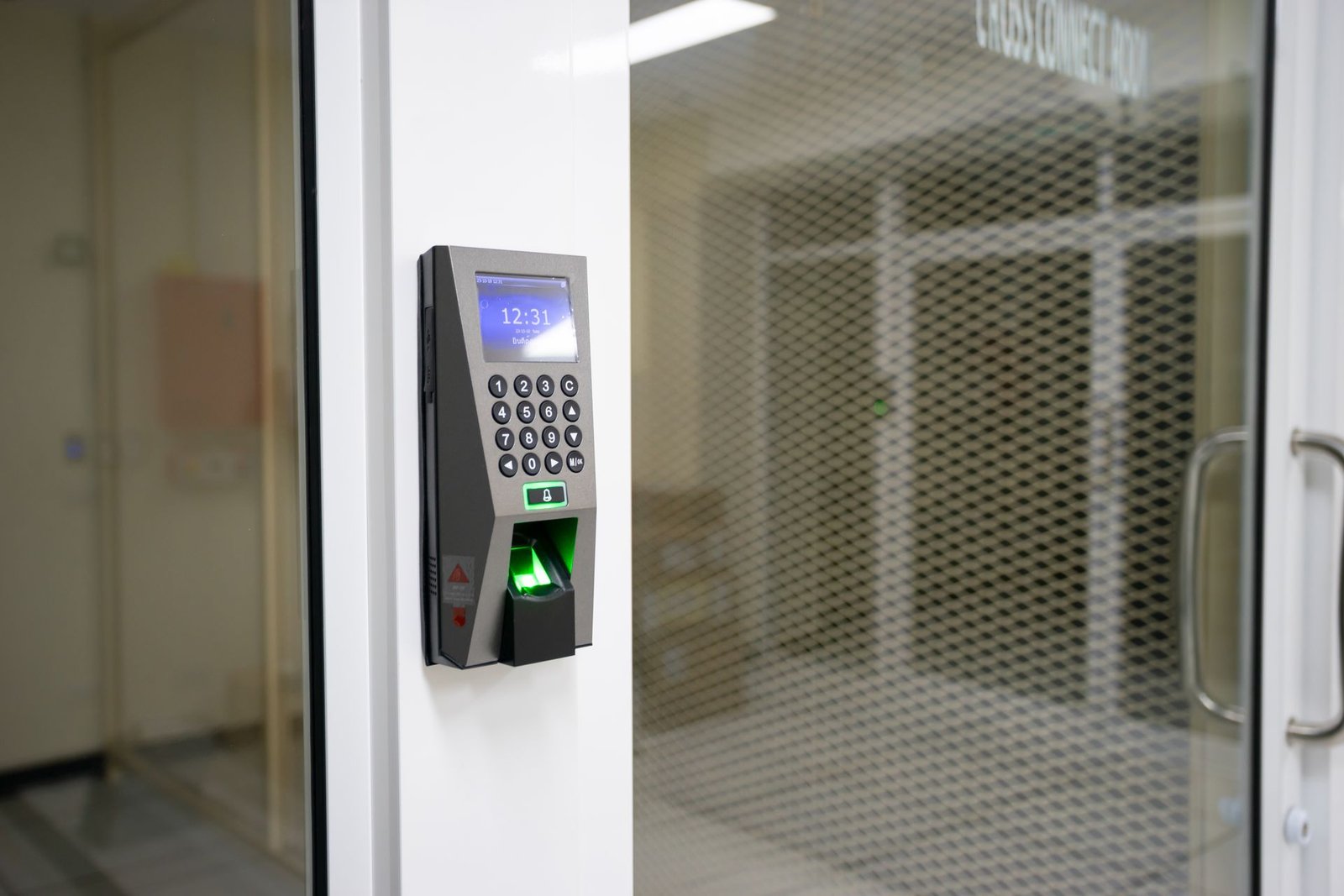
Common 2FA Mistakes (and Myths)
Mistake: thinking 2FA means the password doesn’t matter. It still does. A weak, reused password plus 2FA is better than without, but attackers with your password can attempt SIM swaps, trigger push fatigue, or exploit recovery flows. Pair 2FA with unique passwords from a password manager — they’re complementary, not substitutes.
Mistake: leaving SMS as a fallback. As discussed, if a service lets attackers downgrade your authenticator to SMS via “lost device” flows, your strong setup has a weak backdoor. Audit your important accounts and remove SMS fallbacks where the service allows it.
Mistake: approving push notifications blindly. If you get a login approval request you didn’t initiate, that’s an attack in progress — someone has your password and is trying to get in. Deny it, then immediately change that account’s password. Never approve to “make the notification go away.”
Myth: “2FA is annoying and slows me down.” Modern 2FA is mostly invisible: biometrics on your phone, remembered trusted devices, authenticator codes only for new logins. The thirty seconds it occasionally costs is nothing compared to account recovery. Most of the friction people fear disappears after the first week.
Myth: “Nobody would target me; I’m not important.” Attacks are automated and indiscriminate. Credential stuffing doesn’t care who you are — it tries millions of leaked passwords against millions of accounts. 2FA protects you from the opportunistic attacks that make up the vast majority of account compromises.
Myth: “Biometrics alone are enough.” Your fingerprint unlocks your phone conveniently, but remote services can’t verify biometrics securely the way they verify cryptographic keys. Biometrics are a great local convenience factor; for online accounts, pair them with proper 2FA methods.
Mistake: setting up 2FA and forgetting about it. Review annually: remove old devices, check that backup codes are still accessible, confirm your phone number on file is current, and upgrade methods where better options appeared. 2FA is maintenance, not a one-time event.
Key Takeaways
- Two-factor authentication requires two different proof categories (usually password + phone/device), so a stolen password alone can’t grant access.
- The three factor types are something you know, something you have, and something you are — true 2FA combines different categories.
- Ranked by security: hardware security keys, authenticator apps, push approval, email codes, and lastly SMS codes.
- SMS 2FA is vulnerable to SIM swapping — use it if it’s the only option, but upgrade important accounts to an authenticator app.
- Set up 2FA in priority order: email first, then password manager, then financial accounts, then everything else.
- Always save backup/recovery codes somewhere safe and separate from your phone, and register a second device or key.
- 2FA complements strong unique passwords; it doesn’t replace them. Pair it with a password manager.
- Never approve a login push you didn’t initiate — that’s an attack in progress.
Frequently Asked Questions
What is two factor authentication in simple terms?
Two-factor authentication is a login method that requires two different proofs of identity — usually your password plus a code from your phone or a tap on a security key. Even if someone steals your password, they can’t log in without the second factor.
Is two-factor authentication really necessary?
Yes. Passwords leak constantly through breaches and phishing, and 2FA is the most effective single defense against stolen credentials. It blocks the vast majority of automated account-takeover attempts, and setup takes only a few minutes per account.
What’s the safest type of two-factor authentication?
Hardware security keys are the strongest — they use cryptography and resist phishing because they verify the site’s identity. Authenticator apps are the best balance of security and convenience for most people. SMS codes are the weakest due to SIM-swapping attacks.
What happens if I lose my phone with my authenticator app?
Use your saved backup/recovery codes to log in, or use a second registered device or security key. This is why saving recovery codes separately from your phone is essential — without them, recovery means proving your identity to each service individually.
Can hackers bypass two-factor authentication?
Some methods can be attacked: SIM swapping defeats SMS codes, phishing can capture authenticator codes in real time, and push fatigue can trick users into approving fraudulent logins. Hardware security keys resist all of these. No method is perfect, but any 2FA is dramatically better than none.
Final Thoughts
If there’s one security habit I’d force on everyone I know, it’s understanding what is two factor authentication and turning it on everywhere that matters. Passwords will keep leaking — that’s the world we live in — but 2FA means a leaked password doesn’t have to become a hacked account. Start with your email today, use an authenticator app, save your backup codes somewhere safe, and work down the list from there. It’s the highest return on the smallest effort in all of personal cybersecurity.