

Here’s an uncomfortable question: how many of your online accounts share the same password? If you’re like most people, the answer is “too many.” And that single reused password is why one breached forum account from 2019 can still unlock your email today. Choosing the best password manager for your needs is the highest-impact security upgrade most people never make — it eliminates password reuse entirely and makes every login unique, long, and random, with nothing for you to remember.
I switched to a password manager years ago after helping a friend recover from an account takeover that started with one reused password. Since then I’ve tested most of the major options personally, migrated family members onto them, and watched the category mature. This guide compares the best password managers on the things that actually matter — security architecture, everyday usability, and honest pricing — so you can pick one and never think about passwords again.
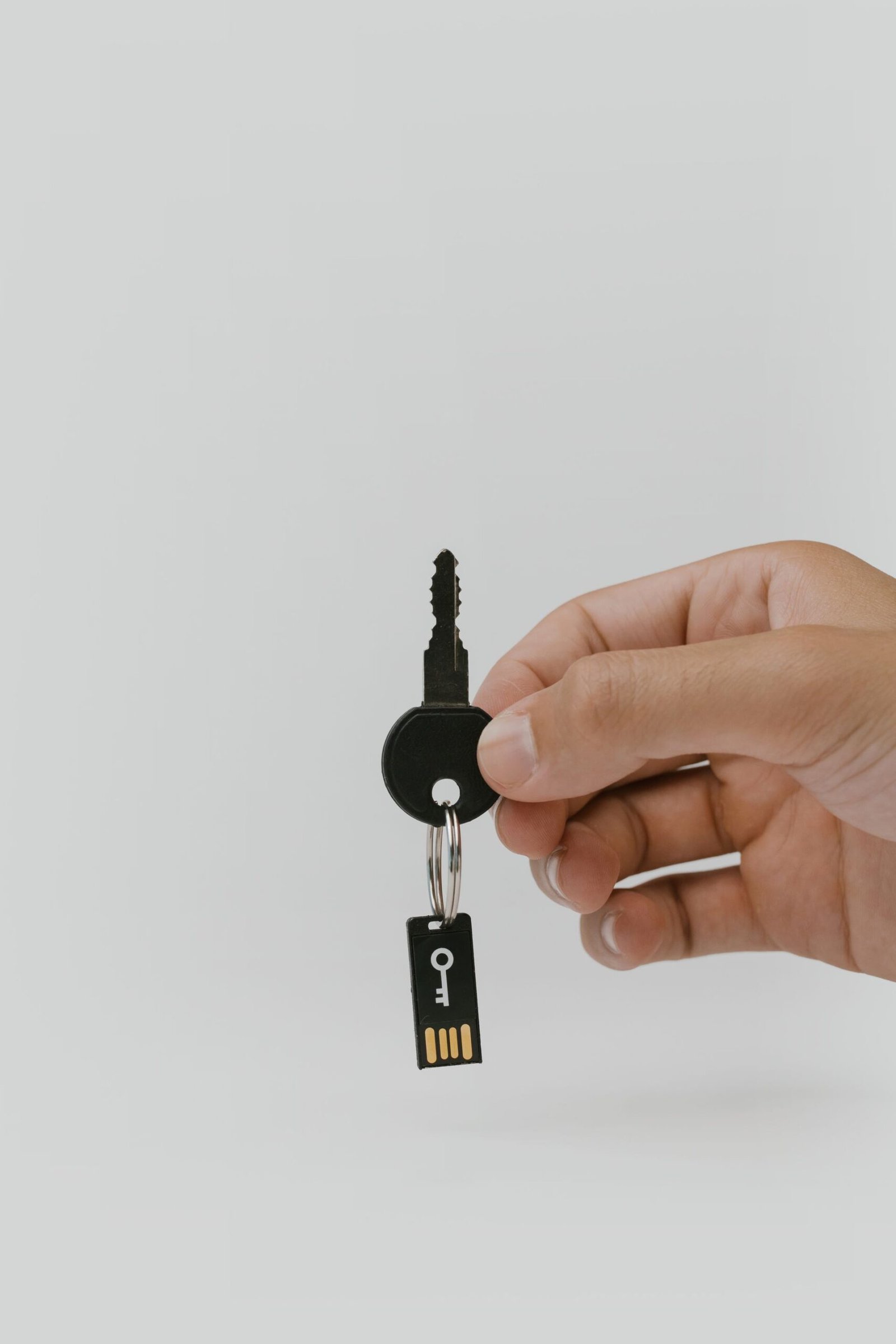
Why Password Managers Beat Your Memory (and Your Browser)
Let’s start with the problem. The average person has well over a hundred online accounts. Memorizing a unique, strong password for each is biologically impossible, so people cope in predictable ways: they reuse a handful of passwords, they use variations (Password1, Password2), or they write them in notes apps and spreadsheets. Every one of these coping strategies is exactly what attackers count on.
When a website gets breached — and breaches happen constantly — the stolen username and password pairs get fed into automated tools that try them on thousands of other sites. This is called credential stuffing, and it works because password reuse is so common. Your strong, unique banking password doesn’t help if the same password also unlocked a breached gaming forum.
A password manager solves this structurally. It generates a long random password for every site, stores them all in an encrypted vault, and fills them in for you automatically. You remember one strong master password; the manager remembers everything else. Even if one site is breached, the damage is contained to that single account, because no other site shares the password.
“But my browser already saves passwords,” I hear you say. Browser password managers are better than nothing, but they’re a convenience feature, not a security product. They typically lack secure sharing, can’t easily move between browsers, offer weaker password generation, and their security model is tied to your browser profile — which malware specifically targets. A dedicated manager is built from the ground up around one job: protecting your credentials.
What Makes the Best Password Manager
Not all password managers are equal, so here’s the criteria I actually use when comparing them. If a product is weak in any of the first three, I rule it out regardless of how pretty the interface is.
Zero-knowledge encryption is non-negotiable. This means your vault is encrypted on your device with your master password, and the provider’s servers only ever see scrambled ciphertext. If the company gets hacked or receives a legal demand, there is nothing useful to hand over. Every reputable manager works this way; if a product can’t clearly explain its encryption model, walk away.
Independent security audits separate marketing from reality. Look for managers that publish regular third-party audits of their apps and cryptography, and that run bug bounty programs. Security is a process, not a feature list, and transparency is the best proxy for taking it seriously.
Cross-platform sync that actually works. You need your passwords on your phone, your laptop, and ideally your tablet and browser, all staying in sync. The best managers make this invisible. Test the mobile app specifically — you’ll use it constantly, and a clunky mobile experience is the number one reason people abandon password managers.
Usability for real humans. Autofill should work on the first try, the password generator should be one tap away, and adding a new login should take seconds. If a manager makes everyday tasks annoying, you’ll stop using it, and an unused password manager protects nothing.
Honest pricing and a real free tier. Most paid managers cost roughly the price of a coffee per month — genuinely good value. But check what’s behind the paywall: some “free” tiers limit you to one device, which is crippling in practice. Also check family plans if you want to protect a household; they’re usually the best value in the category.
Extra features worth having: passkey support (the emerging passwordless standard), secure sharing for family or teams, a built-in authenticator for two-factor codes, breach monitoring that alerts you when your credentials appear in leaks, and emergency access so a trusted person can reach your vault if something happens to you.
The Best Password Managers Compared
Here’s how the leading options stack up. I’m focusing on the managers I’d genuinely recommend to a friend, described by their strengths rather than marketing copy.
1Password is the premium all-rounder. Its apps are polished on every platform, autofill is reliable, and features like Travel Mode (which temporarily removes sensitive vaults from your devices when crossing borders) show real thoughtfulness. It pioneered the Secret Key system — an extra random key stored on your devices that makes brute-forcing your vault practically impossible even if someone steals the encrypted data. The downside: no free tier, only a trial. Best for: people who want the smoothest experience and are happy to pay for it.
Bitwarden is the open-source champion and the best free option by a wide margin. Its free tier includes unlimited passwords and sync across unlimited devices — something competitors charge for. Being open source means its code can be inspected by anyone, and it undergoes regular independent audits. The interface is functional rather than beautiful, and some advanced features require the very reasonably priced premium tier. Best for: budget-conscious users, the technically inclined, and anyone who values open-source transparency.
Dashlane stands out for its ease of use and extras. Its onboarding is the friendliest I’ve seen — it practically holds your hand through importing passwords and securing weak ones. It includes a capable VPN and dark-web monitoring in its paid plans, which is nice if you want an all-in-one package. The free tier is limited to a single device, which makes it more of a trial than a real option. Best for: beginners who want guidance and bundled extras.
Keeper is the security-first choice, popular with businesses and security-conscious families. It offers strong admin controls, secure file storage, and encrypted messaging alongside password management. The interface feels more corporate than consumer, and the best features sit in higher tiers. Best for: families wanting strong controls or professionals with compliance needs.
NordPass (from the makers of NordVPN) is a solid modern option with an exceptionally clean interface and strong passkey support. If you already use other products in that ecosystem, the integration is convenient. It’s newer than the others, so its track record is shorter, but its security architecture is sound and audited. Best for: minimalists and existing users of the broader product family.
Apple iCloud Keychain and Google Password Manager deserve an honorable mention: they’re free, built in, and far better than reusing passwords. If you’re deeply embedded in one ecosystem and will never leave, they’re a reasonable choice. But they’re less flexible across platforms, lack advanced features like secure sharing outside the ecosystem, and switching later is painful. I’d still nudge most people toward a dedicated manager.
Free vs Paid: Is a Free Password Manager Enough?
This is the question I get most, and the honest answer is: it depends on the free tier. A genuinely good free password manager — unlimited passwords, unlimited devices, full encryption — is absolutely enough for most individuals. Bitwarden’s free tier is the standout example; it covers everything a typical person needs without artificial limits.
What usually pushes people to paid plans isn’t core password storage but the extras: family sharing across multiple vaults, advanced two-factor options, priority support, more storage for secure documents, and breach monitoring. For an individual, these are nice-to-haves. For a household, a family plan is usually worth it — getting your partner, your kids, and all the smart home devices on your network onto unique passwords multiplies the household’s security.
What I’d avoid: free tiers that limit you to one device type. A password manager that doesn’t sync to your phone is barely a password manager at all, since so much of modern life happens on mobile. Also be wary of completely unknown free managers with no audits and no business model — if you’re not paying, ask yourself how the company survives, because your vault is not something to gamble with.
One more honest note: price differences between the major paid managers are small — typically a few dollars a month, often less with annual billing. Don’t over-optimize on price. Pick the one whose apps you enjoy using, because the manager you actually use beats the theoretically superior one you abandon.
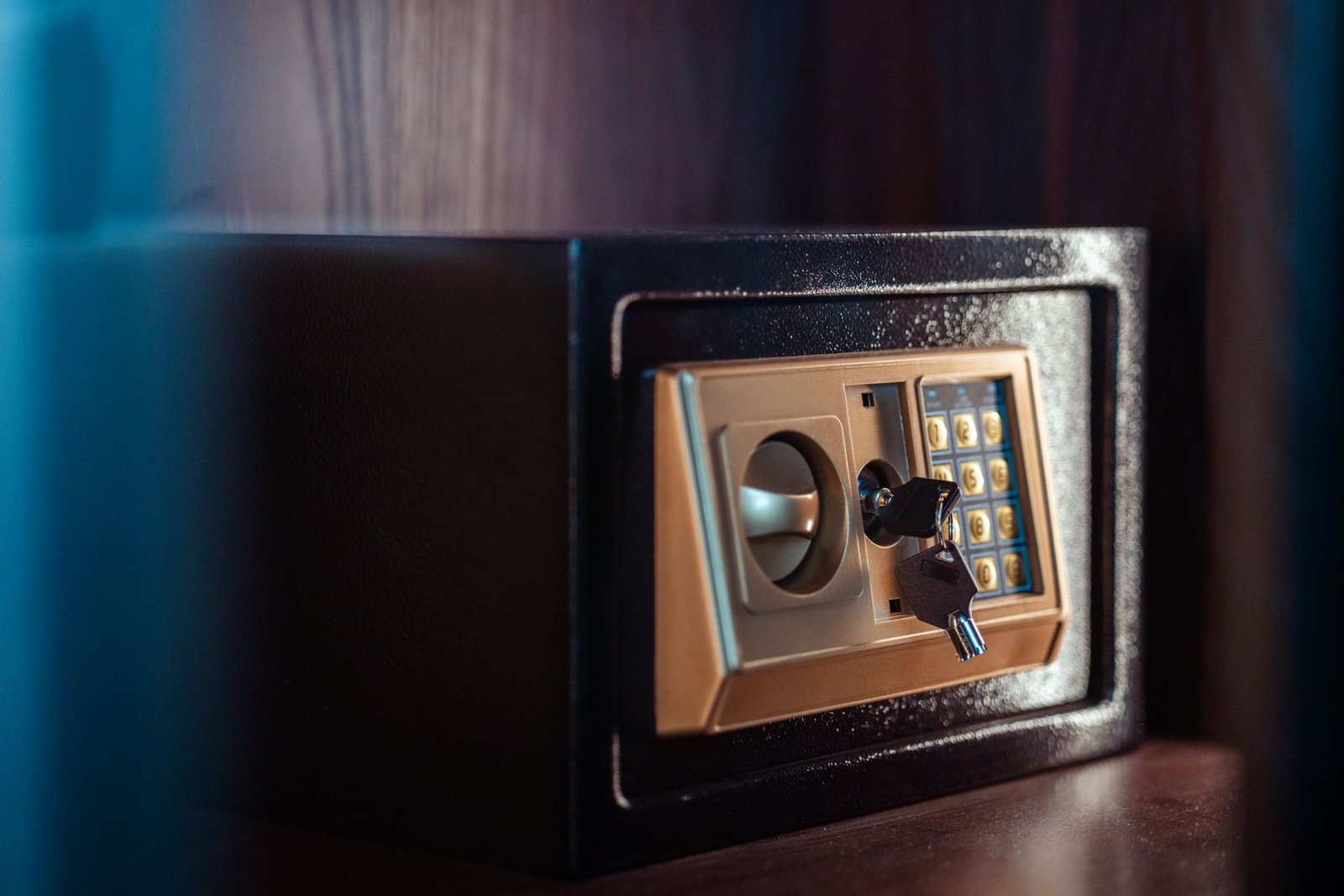
Password Managers vs Browser Autofill: An Honest Comparison
Since browsers keep improving their built-in password tools, it’s worth a direct comparison so you can make an informed choice.
Security model. Dedicated managers use zero-knowledge encryption with a separate master password; your vault stays locked even if someone borrows your laptop. Browser password managers typically unlock with your device login or browser profile, which is a lower bar — anyone who gets past your lock screen may get your passwords too.
Portability. A dedicated manager works across Chrome, Firefox, Safari, Edge, iOS, Android, Windows, and Mac simultaneously. Browser tools lock you into that browser’s ecosystem. Switch browsers and your passwords don’t come along gracefully.
Features. Dedicated managers offer secure sharing, password health reports, breach alerts, emergency access, passkey management, and secure notes. Browsers offer a subset of these, implemented as side features rather than core competencies.
Phishing resistance. This one is underappreciated: a good password manager will only autofill on the exact domain it saved the password for. If you land on a lookalike phishing site, the manager simply won’t offer your credentials — a silent but powerful warning that something is wrong. Browsers do this too, but dedicated managers tend to implement it more strictly.
The bottom line: browser autofill is a fine stepping stone, and it’s infinitely better than password reuse. But if you’re choosing deliberately, a dedicated manager wins on every dimension that matters.
How to Switch to a Password Manager in an Afternoon
The migration feels daunting, but in practice it takes a couple of hours, most of it waiting for imports. Here’s the process I walk people through:
Step 1: Pick your manager and create your account. Choose from the comparison above based on your needs. During signup, you’ll create your master password — make it long, unique, and memorable. A passphrase of five or six random words works well. Write it down on paper and store it somewhere safe; if you forget it, nobody can recover your vault. This is the one password you must never lose.
Step 2: Import your existing passwords. Every major manager can import from browsers and from other managers via CSV. Export from your browser’s password settings, import into the manager, then delete the export file immediately — it’s unencrypted. This gets you 80% of the way in minutes.
Step 3: Install the apps and browser extension. Put the manager on your phone, your computer, and your browser. Enable biometric unlock (fingerprint or face) so you rarely need to type the master password. Turn on autofill in your phone’s settings so the manager can fill passwords in apps too.
Step 4: Fix your worst passwords first. Run the manager’s password health report. It will flag reused, weak, and compromised passwords. Start with the critical accounts — email, banking, primary social media — and use the generator to replace each with a long random password. You don’t have to do all hundred accounts in one sitting; do the important ten today and work through the rest over a couple of weeks.
Step 5: Turn on two factor authentication for the manager itself. Your vault is now the keys to your entire digital life, so protect it accordingly. An authenticator app or hardware key on the manager account is essential.
Step 6: Set up emergency access. Most managers let you designate a trusted person who can request access to your vault after a waiting period. It feels morbid, but it’s the responsible thing to do — otherwise your digital life becomes inaccessible if something happens to you.

Common Concerns, Answered Honestly
“Isn’t putting all my passwords in one place risky?” It’s the most common objection, and it’s backwards. Yes, the vault is a high-value target — which is exactly why it’s protected by strong encryption, audited code, and your master password, while your current system (memory, reuse, sticky notes) has none of those protections. A vault is a safe; your memory is a screen door.
“What if the password manager company gets hacked?” This has happened, and it’s instructive: because of zero-knowledge encryption, attackers got encrypted blobs, not passwords. That’s the architecture working as designed. It’s also why your master password must be strong and unique — it’s the one thing standing between an attacker and your vault.
“What if I forget my master password?” Then you’re locked out, period — the company can’t reset it for you. This is the price of zero-knowledge security. Mitigate it with a memorable passphrase, a written backup in a safe place, and emergency access for a trusted person.
“Can the manager itself be phished?” Fake login pages targeting password manager accounts exist — it’s the same phishing playbook applied to a high-value target — which is why 2FA on your manager account is non-negotiable, and why you should only ever log in through the official app or by typing the URL yourself. The manager’s refusal to autofill on unfamiliar domains is itself a phishing detector — pay attention when it stays silent.
Key Takeaways
- Password reuse is the core problem: one breached password can unlock many accounts through credential stuffing.
- A password manager generates and stores a unique, random password for every site; you remember only one master password.
- Non-negotiable features: zero-knowledge encryption, independent security audits, and reliable cross-platform sync.
- 1Password leads on polish, Bitwarden leads on free-tier value and open source, Dashlane on beginner-friendliness, Keeper on security controls.
- Browser autofill is better than nothing but loses to dedicated managers on security model, portability, and features.
- A good free tier is enough for most individuals; paid plans add family sharing and extras.
- Migration takes an afternoon: import, install apps, fix critical passwords first, enable 2FA on the vault, set up emergency access.
Frequently Asked Questions
What is the best password manager for most people?
For most people, the best password manager is the one they’ll actually use daily — which usually means 1Password for polish or Bitwarden for value. Both offer zero-knowledge encryption, audited security, and excellent cross-platform apps. Pick based on whether you prefer a premium experience or a free, open-source one.
Are free password managers safe to use?
Reputable free password managers are safe — they use the same zero-knowledge encryption as paid tiers. The key is choosing an established, independently audited product with a sustainable business model. Avoid obscure free managers with no audits and no clear way of making money.
Can a password manager be hacked?
Password manager companies have been breached, but zero-knowledge architecture means attackers obtain encrypted vaults, not usable passwords. Your safety then depends on your master password’s strength — which is why it must be long, unique, and protected with two-factor authentication.
What happens if I forget my master password?
With zero-knowledge encryption, the provider cannot recover it for you — your vault becomes permanently inaccessible. Prevent this with a memorable passphrase, a written backup stored securely, and emergency access configured for someone you trust.
Should I still use two-factor authentication with a password manager?
Absolutely. A password manager and two-factor authentication solve different problems: the manager ensures every password is unique, while 2FA ensures a stolen password alone can’t grant access. Enable 2FA on your important accounts and on the password manager account itself.
Final Thoughts
Finding the best password manager isn’t about finding the perfect app — it’s about ending password reuse, one of the most exploited habits in cybersecurity. Every option here will do that job well. So pick one today: try Bitwarden if you want excellent and free, or 1Password for the most polished experience. Spend one afternoon migrating, fix critical accounts first, and turn on two-factor authentication for the vault itself. Future you — who never has to remember, reset, or worry about a password again — will be grateful.