

If you have bought any tech in the last few years, you have met the small oval port that is quietly taking over everything. So what is USB-C, really — and why do two identical-looking USB-C ports sometimes do completely different things? I have spent enough time untangling cable confusion for friends and family to know this is one of technology’s most useful and most misunderstood standards.
Here is the essential insight this guide will unpack: USB-C describes only the shape of the connector, not what it can do. The capabilities — data speed, charging power, video output — depend on the standards implemented behind that connector, and on the cable you use. Once you understand that separation, the whole ecosystem makes sense: why one cable charges your laptop and another barely charges your phone, why some ports drive monitors and others do not, and how to buy cables and chargers with confidence instead of guesswork.
What Is USB-C? The Connector vs the Standard
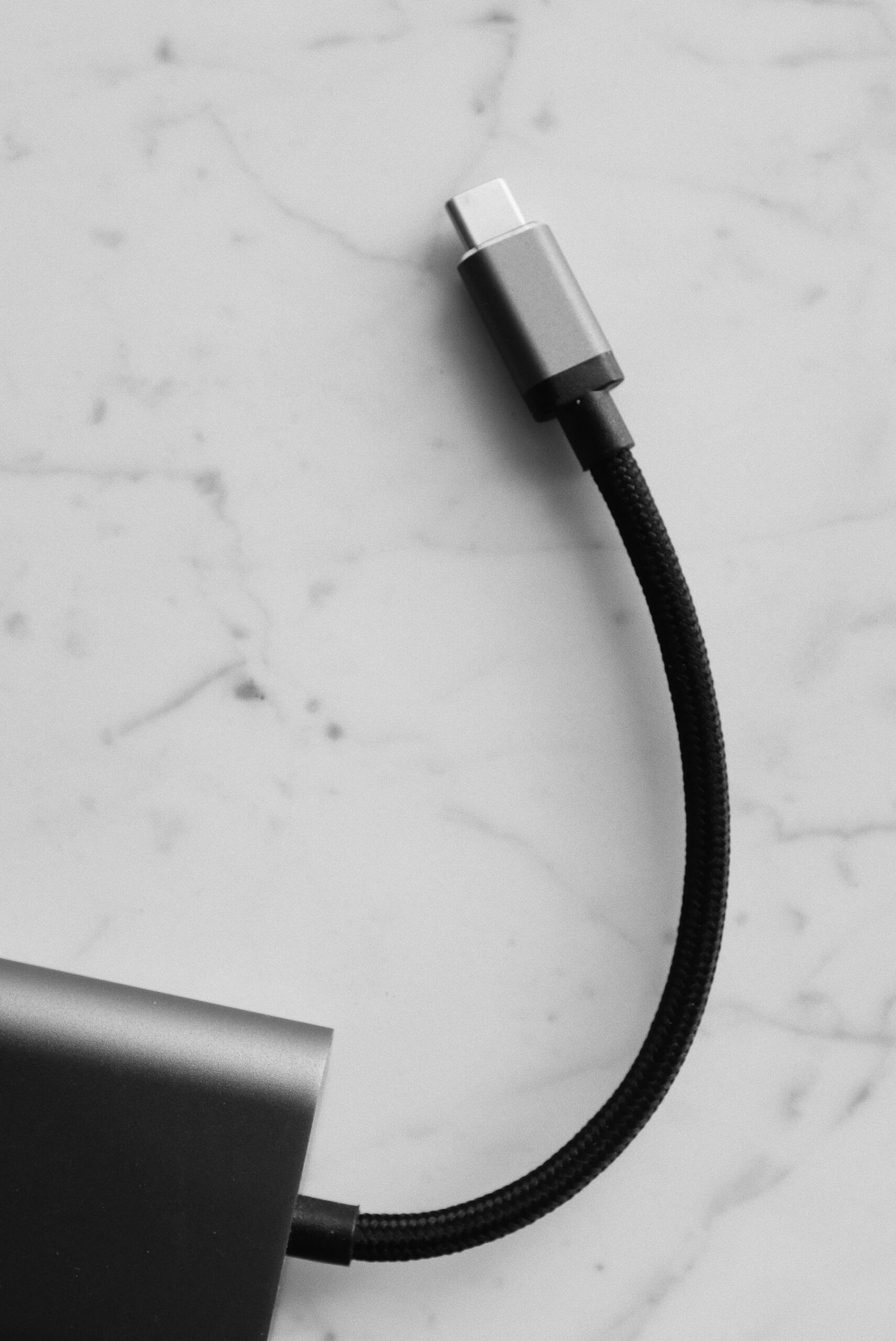
Let us start with the distinction that unlocks everything else. “USB-C” properly refers to a physical connector design: a small, reversible, symmetrical oval plug, roughly the size of a fingernail, that inserts either way up. No more flipping the plug three times — the classic USB ritual is dead.
But the connector is just the doorway. What walks through it is determined by separate standards:
- USB data standards (USB 2.0, 5 Gbps, 10 Gbps, 20 Gbps, 40 Gbps, and beyond) determine how fast data moves.
- USB Power Delivery (USB PD) determines how much charging power flows — from a trickle to enough for a full-size laptop.
- Alternate modes (like DisplayPort Alt Mode) let the port carry entirely different signals, such as video to a monitor.
- Thunderbolt (3, 4, and 5) is a related high-performance standard that uses the USB-C connector.
A USB-C port on a cheap accessory might implement only slow USB 2.0 data and basic charging. A USB-C port on a premium laptop might carry 40 Gbps data, 100W+ charging, and video to two monitors — through the identical-looking connector. Neither is “fake USB-C”; they simply implement different capabilities. The confusion is real, but it is not a scam — it is a flexible standard with a wide range.
Why USB-C Exists: A Short History of Cable Chaos
To appreciate USB-C, remember what it replaced. The 2000s and 2010s were a dark age of connectors: full-size USB-A on computers, Mini-USB then Micro-USB on gadgets, a parade of proprietary barrel plugs for laptop chargers, and separate ports for video (HDMI, DisplayPort, VGA). Every device needed its own cable, laptop chargers were brand-specific bricks, and travelers carried pouches of adapters.
USB-C was designed as the great consolidation: one connector for data, charging, and video across phones, tablets, laptops, monitors, and accessories. The industry has largely delivered — phones, laptops, tablets, headphones, and even many peripherals have converged on USB-C, and regulations in major markets have accelerated the transition. The dream of “one cable for everything” is closer than it has ever been. The remaining complexity is not the connector anymore — it is knowing what each port and cable supports, which is what the rest of this guide covers.
USB Speeds: The Confusing Part, Decoded
This is where most confusion lives, so let us lay it out plainly. The USB standards body has renamed its speed tiers multiple times (badly), so you will encounter overlapping names for the same speeds. Here is what matters:
- USB 2.0 (480 Mbps). Ancient by modern standards, but still extremely common in USB-C ports and cables — many phone charging cables and cheap accessories are USB 2.0 inside a USB-C shell. Fine for charging and connecting keyboards; painfully slow for large file transfers.
- 5 Gbps. The baseline “fast” USB for many laptops and drives. Good for everyday external storage and peripherals.
- 10 Gbps. Comfortable for fast external SSDs and docks. A sweet spot for many users.
- 20 Gbps and 40 Gbps. The high end, typically tied to Thunderbolt or the newest USB standards. Matters for demanding workflows: high-resolution video editing off external drives, multi-monitor docks, and pro-grade peripherals.
The practical rule: match the cable and port to the job. Copying phone photos occasionally? Any cable works. Running an external SSD for video work? You need the fast port and a fast-rated cable — the slowest link in the chain sets the speed. When a transfer feels mysteriously slow, a USB 2.0 cable masquerading in a USB-C body is the most common culprit I encounter.
How to tell what you have: check the device’s specifications for the port’s rated speed, and check cable packaging or listings for speed ratings. Quality cables state their data rate explicitly; cables that say nothing about data speed are usually USB 2.0.
Power Delivery: One Charger for Everything
USB Power Delivery (USB PD) is arguably USB-C’s most life-changing feature. It is a standard that lets devices negotiate charging power intelligently — from a few watts for earbuds up to 100W, 140W, or more for large laptops — over the same cable shape.
What this means in practice:
- One charger for travel. A single compact GaN (gallium nitride) charger with enough wattage can charge your laptop, phone, and headphones — you just need the right cables. This alone has lightened millions of travel bags.
- Laptops charge over USB-C now. Most modern thin laptops charge through USB-C instead of proprietary barrel plugs, which means a lost charger is a minor inconvenience rather than a brand-specific emergency.
- Fast charging for phones. Many phones’ fast-charging systems run on USB PD (sometimes with manufacturer extensions). The phone, cable, and charger must all support the relevant standard — a weak link anywhere means slow charging.
What to check when buying chargers and cables:
- Wattage. The charger’s rated wattage must meet or exceed your device’s needs — a 65W charger will not fast-charge a laptop that wants 100W. Devices only draw what they need, so a higher-wattage charger is safe for smaller devices.
- Cable power rating. Cables are rated for current too: standard USB-C cables handle up to 60W, while cables with special marker chips (often labeled 100W or 240W) are needed for high-power laptop charging. A 100W charger with a 60W cable gives you 60W — again, weakest link wins.
- Ports on multi-port chargers. “100W total” does not mean 100W per port — check how power splits when multiple devices are plugged in, or your laptop may charge slowly while the phone drinks first.
Video Over USB-C: DisplayPort Alt Mode Explained
Many USB-C ports can output video directly to a monitor using DisplayPort Alt Mode — the port repurposes some of its data lanes to carry a DisplayPort video signal. A single USB-C cable can then drive a monitor, and often carry USB data and laptop charging simultaneously.
What you need for it to work:
- A USB-C port on your computer that supports video output (check specs — not all do).
- A monitor with USB-C input, or a USB-C to HDMI/DisplayPort cable or adapter.
- A cable rated for the bandwidth your resolution and refresh rate need.
The one-cable desk setup is the payoff: laptop connects to a dock or monitor with a single USB-C cable that delivers power to the laptop, video to the screen, and connects keyboard, mouse, and storage through the dock’s hub. When you leave, you unplug one cable. For hybrid workers who dock and undock daily, this is transformative — and it is worth confirming your laptop’s port supports it before buying the dock.
Limitations to know: the number and resolution of monitors a single port can drive depends on the port’s standard (Thunderbolt ports drive more than basic USB-C). Daisy-chaining monitors works on some setups and not others — verify with your specific hardware combination.
Thunderbolt: USB-C’s Powerful Sibling
Thunderbolt uses the USB-C connector but is a separate, more capable standard (developed with Intel). Think of it as USB-C’s overachieving sibling: every Thunderbolt port is a USB-C port, but not every USB-C port is Thunderbolt.
What Thunderbolt adds: guaranteed high bandwidth (40 Gbps and up in recent versions), mandatory video output support, and daisy-chaining of multiple devices. It is the standard behind high-end docks, pro audio interfaces, external GPUs, and the fastest external storage.
Do you need it? For most people, no — standard USB-C covers charging, displays, and storage comfortably. Thunderbolt earns its premium for demanding workflows: multiple high-resolution monitors, high-speed external SSD arrays, and pro media production. It is common on premium laptops and rare on budget ones, which roughly matches who needs it.
Compatibility notes: Thunderbolt ports accept all USB-C devices and cables (at USB speeds), and Thunderbolt devices generally work in USB-C ports with reduced capabilities. Certified Thunderbolt cables are required for full Thunderbolt speeds — they are marked with a lightning-bolt logo. Do not pay the Thunderbolt cable premium unless both your devices are Thunderbolt.

Cables: Why Identical-Looking Cables Differ Wildly
If this guide has one “save your money and sanity” section, it is this one. USB-C cables that look identical can differ in three independent ratings:
- Data speed — from USB 2.0 (480 Mbps) to 40 Gbps. Most cheap cables are USB 2.0.
- Power rating — typically 60W standard, or 100W/240W with marker chips for laptop charging.
- Video support — only relevant if you need Alt Mode, but the cable must be rated for it.
How to buy cables without regret:
- Read the specs, not the price. A cable’s listing should state data speed and power rating explicitly. No stated ratings usually means USB 2.0 data and basic power — fine for overnight phone charging, wrong for everything else.
- Buy for the job. Nightstand phone charging: any decent cable. Laptop charging: 100W-rated cable. External SSD: 10 Gbps or faster cable. Monitor connection: video-rated cable of sufficient bandwidth.
- Length costs performance. Very long cables (beyond about 1–2 meters) struggle with the highest speeds unless they are active/optical designs. For full-speed operation, shorter is safer.
- Certification logos help. USB-IF certified cables and Thunderbolt-certified cables have been independently tested — worth it for critical connections, less important for a spare charging cable.
- Replace suspicious cables. Frayed, overheating, or intermittent cables are not worth the risk to expensive devices. Quality cables are cheap; device repairs are not.
Label your cables. A strip of colored tape distinguishing your 100W laptop cable from your USB 2.0 overnight cable prevents the maddening “why is my laptop charging slowly” mystery. Future you will be grateful.
Transitioning: Adapters and Living With Old Devices
You do not need to replace everything at once. A small adapter kit bridges the old world and the new:
- USB-C to USB-A adapters let your new laptop talk to older flash drives, receivers, and peripherals. Keep one on your keychain and one at your desk.
- USB-C to HDMI/DisplayPort cables connect to monitors and projectors that predate USB-C inputs — essential for presentations in unfamiliar rooms.
- Multi-port hubs add back the USB-A ports, SD card readers, and Ethernet that thin laptops omit. A compact travel hub plus a full desk dock covers both contexts.
When replacing cables and chargers, do it opportunistically: when a Micro-USB cable frays, replace the device-side with USB-C if the device supports it; when buying new gear, prefer USB-C versions. Within a year or two of natural replacement cycles, most households consolidate almost entirely — and the fabled single-cable bag becomes real.
One caution on adapters: ultra-cheap no-name adapters can misreport capabilities or, in rare cases, damage ports. Stick to reputable brands for anything carrying laptop-level power or video — the savings on a bargain adapter are never worth a fried port.
Before You Buy: A Quick Checklist
- Ports: check your devices’ USB-C port specs — data speed, Power Delivery wattage, video output support, Thunderbolt or not. The manual or manufacturer’s spec page has this.
- Charger: wattage meeting your hungriest device, enough ports for your kit, and a clear per-port power split for multi-port models.
- Cables: rated for your actual jobs (power rating for laptop charging, data speed for SSDs, video rating for monitors), in sensible lengths.
- Dock/hub: confirm your laptop’s port supports everything the dock promises — video output and power delivery in particular — before purchasing.
- Ecosystem fit: if you are choosing a laptop for programming or comparing SSD vs HDD storage, factor USB-C charging and port speeds into the decision — they shape your daily setup as much as any internal spec.
Key Takeaways
- USB-C describes the connector shape, not its capabilities — data speed, charging power, and video support vary independently behind identical-looking ports.
- USB data speeds range from USB 2.0 (480 Mbps, still common in cheap cables) to 40 Gbps; the slowest link among port, cable, and device sets the speed.
- USB Power Delivery enables one charger for laptop, phone, and accessories — match charger wattage and cable power rating to your hungriest device.
- DisplayPort Alt Mode lets many USB-C ports drive monitors; Thunderbolt is the higher-performance sibling for demanding multi-display and storage workflows.
- Buy cables by stated ratings (data speed, wattage, video support), keep them short for full speed, and label them to avoid mix-ups.
- Check port capabilities in device specs before buying docks, and replace damaged cables promptly.
Frequently Asked Questions
Are all USB-C cables the same?
No — this is the most important thing to know. USB-C cables that look identical can differ in data speed (USB 2.0 to 40 Gbps), power rating (60W to 240W), and video support. Always check the stated ratings for the job you need; unrated cables are usually USB 2.0 with basic charging.
Can USB-C charge my laptop?
If both the laptop and the charger support USB Power Delivery at sufficient wattage, yes — most modern thin laptops charge over USB-C. You also need a cable rated for the required wattage (100W-rated for most laptops). Check your laptop’s specs for its charging requirements.
What is the difference between USB-C and Thunderbolt?
Thunderbolt is a higher-performance standard that uses the USB-C connector. Every Thunderbolt port works as a USB-C port, but not every USB-C port supports Thunderbolt speeds and features. Thunderbolt matters for demanding workflows like multiple high-resolution monitors and pro-grade external storage; standard USB-C covers most everyday needs.
Why is my USB-C file transfer so slow?
The most common cause is a USB 2.0-rated cable — extremely common even in USB-C form — limiting transfers to 480 Mbps. Check that both the port and the cable support higher speeds, keep cables short, and connect directly rather than through an unpowered hub.
Is it safe to use any USB-C charger with my phone?
Generally yes for reputable chargers: USB Power Delivery negotiates safe power levels, and devices only draw what they need. Use certified chargers from known brands, match the wattage sensibly, and replace damaged cables — cheap no-name chargers with poor safety design are the real risk, not the standard itself.
Will USB-C replace HDMI for monitors?
For computer monitors, largely yes — USB-C with DisplayPort Alt Mode already carries video, data, and laptop charging over one cable, which is why modern docks and monitors embrace it. HDMI remains dominant for TVs and home theater, where single-purpose simplicity rules. Expect both to coexist: USB-C on desks, HDMI in living rooms.
Conclusion
So what is USB-C? It is the connector that finally unified our cables — and a family of capabilities (data speeds, Power Delivery charging, video alt modes, Thunderbolt) that you now know how to decode. The confusion was never really about the shape of the plug; it was about assuming identical shapes meant identical abilities.
Armed with this guide, you can read a spec sheet with confidence: check what each port supports, buy chargers with wattage to spare, choose cables rated for their actual jobs, and label them so the fast ones do not get lost in the drawer. Do that, and the one-cable dream is genuinely yours — a bag with one charger, a desk with one cable, and no more drawer of mysterious cords.