

Every few months someone asks me whether their slow computer needs replacing, and half the time the real answer is that it needs its hard drive replaced — with an SSD. The ssd vs hdd question is one of the most consequential in personal computing, because storage affects literally everything: how fast your computer boots, how quickly programs open, how long your laptop battery lasts, and how your data survives accidents.
Here is the short version: SSDs (solid-state drives) are dramatically faster, more durable, and quieter than HDDs (hard disk drives), while HDDs still offer far more capacity per dollar. For the drive your operating system and programs live on, the SSD has won completely — no contest. But hard drives are not dead; they remain the economical choice for bulk storage. This guide explains how each technology works, compares them honestly across every dimension that matters, and helps you choose the right storage for each job.
SSD vs HDD: The Core Difference in One Paragraph
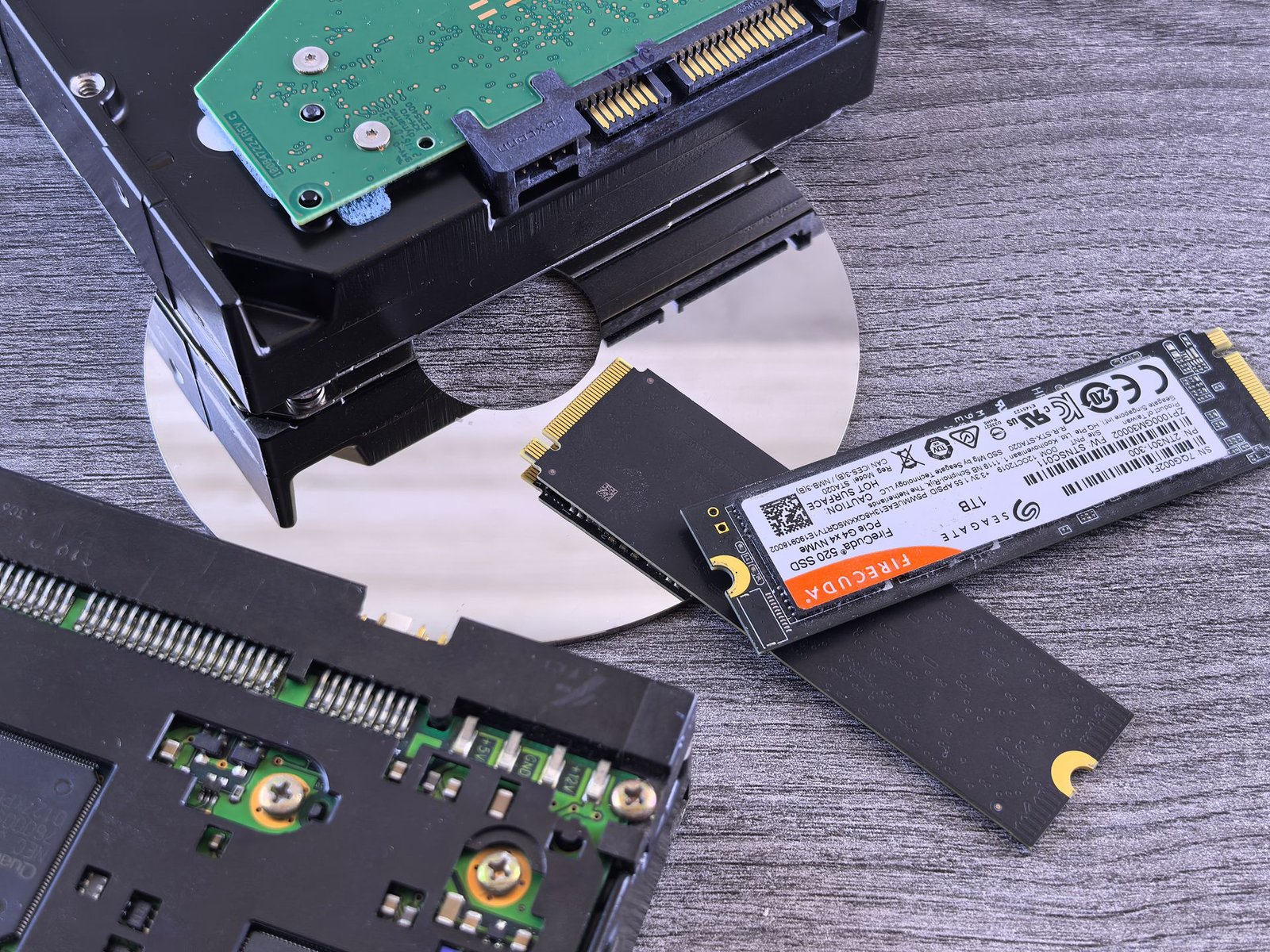
An HDD stores data magnetically on spinning metal platters, with a mechanical arm moving a read/write head across the surface — like a tiny, extremely precise record player. An SSD stores data electronically in flash memory chips with no moving parts at all — more like a giant, ultrafast USB stick wired directly to your system. That mechanical-vs-electronic divide explains nearly every difference between them: speed, durability, noise, power use, and price. Keep that image in mind and the rest of this guide follows naturally.
How Each Technology Actually Works
Hard disk drives have been refined for over half a century. Inside the sealed case, one or more platters spin at thousands of revolutions per minute while an actuator arm swings the read/write head to the correct track. To read a file, the drive must physically move the head and wait for the right part of the platter to spin underneath — this mechanical seeking takes milliseconds, an eternity in computer time. HDDs are marvels of precision engineering, but they are fundamentally limited by physics: moving parts can only move so fast.
Solid-state drives store bits in NAND flash memory cells organized on chips. Reading data means sending an electrical signal to the right address — no movement, no waiting for spinning platters. Access times are measured in microseconds, roughly a hundred times faster than a hard drive’s milliseconds. Modern SSDs come in two main flavors: SATA SSDs (using the older drive interface, still much faster than any HDD) and NVMe SSDs (connecting directly to the motherboard’s fastest lanes, several times faster again).
The practical upshot: the jump from HDD to even a basic SATA SSD is the largest single performance upgrade most computers can receive — bigger than a processor or memory upgrade for everyday responsiveness. The jump from SATA SSD to NVMe is noticeable but far smaller by comparison.
Speed: The Dimension That Decides Most Purchases
Speed is where the comparison is least close, so let us be concrete about what it feels like:
- Boot times. A computer with an SSD typically reaches a usable desktop in well under half a minute; the same machine on a hard drive can take several minutes, especially as the system ages and accumulates software.
- Opening programs. Applications launch in a second or two from an SSD versus long, grinding waits from an HDD — the difference is most dramatic with large programs like photo editors, development environments, and games.
- File operations. Copying, searching, and organizing files happens at a pace that feels instant on SSDs. Searching an entire drive for a file — the kind of thing operating systems do constantly behind the scenes — completes before you notice on an SSD.
- Multitasking. This is the hidden one: when several programs need the disk at once, a hard drive’s mechanical head thrashes between locations and everything slows to a crawl. An SSD handles many simultaneous requests gracefully, which is why SSD machines feel responsive under load.
There is one nuance worth knowing: sustained write speeds on cheaper SSDs can drop during very long writes (copying hundreds of gigabytes at once) as their fast cache fills. For normal use — including gaming, creative work, and development — this rarely matters. Hard drives have no such cache trickery, but their steady speed is far below an SSD’s in every scenario.
Durability: Moving Parts vs No Moving Parts
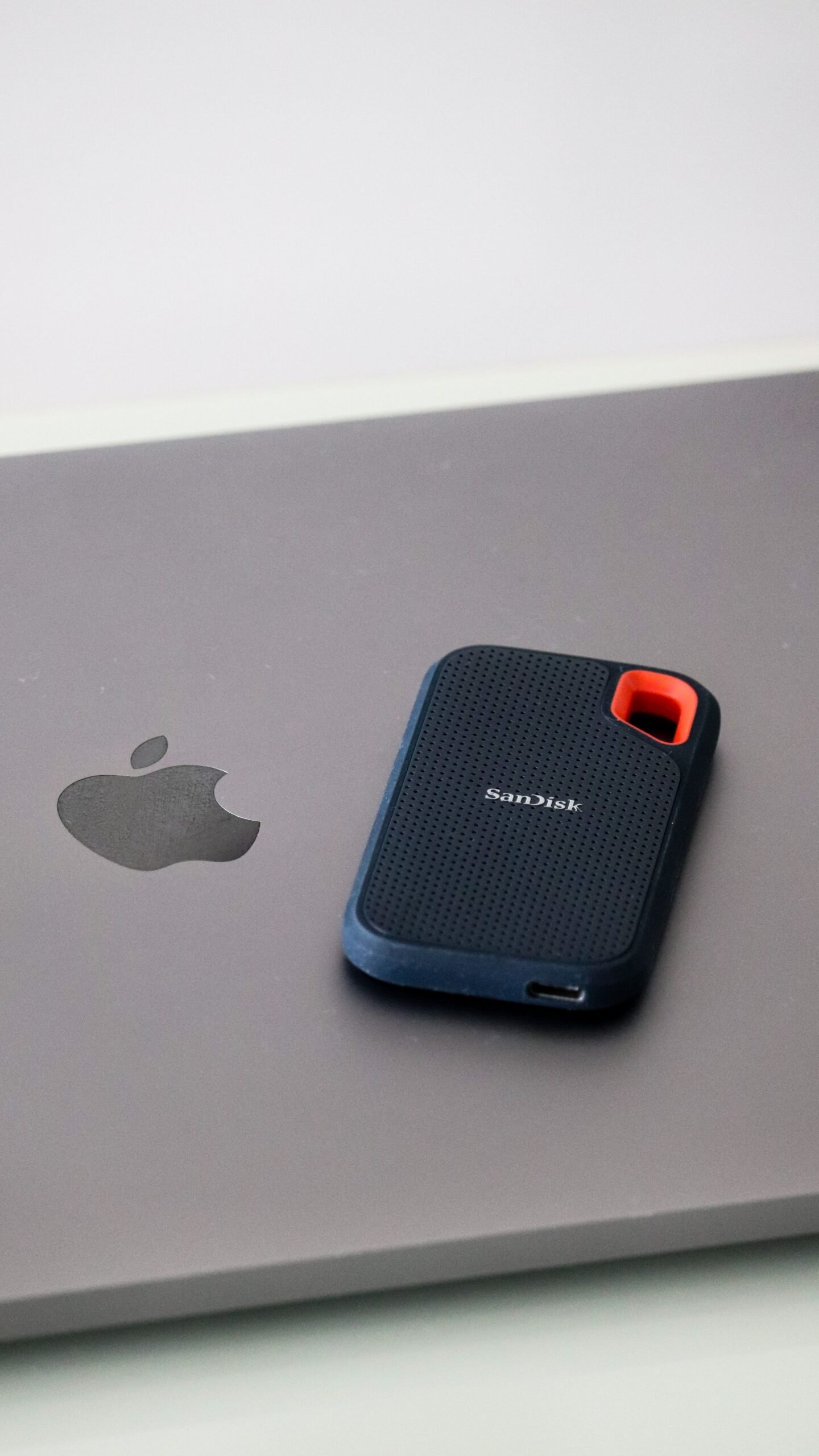
Drop a running hard drive and you can destroy it — the read head can crash into the spinning platter, a failure as catastrophic as it sounds. Even without accidents, HDDs wear mechanically over years: bearings, motors, and actuators all have finite lives. They also hate vibration, which is why laptop hard drives were always the most failure-prone component in portable computers.
SSDs, with no moving parts, shrug off drops, bumps, and vibration that would kill a hard drive. They are silent (no spinning, no clicking), generate less heat, and draw less power — which is part of why SSD laptops get better battery life and run cooler. For laptops, which live in backpacks and get jostled constantly, the durability argument alone justifies SSDs.
That said, SSDs are not immortal — they have their own wear mechanism, covered in the lifespan section below. And one honest caveat: when hard drives fail, they often fail gradually, with warning signs (strange noises, slow sectors) that let you rescue data. SSD failures can be more sudden. The lesson is the same for both: keep backups regardless of drive type.
Capacity and Price: Where HDDs Still Win
Here is the honest counterweight to everything above: hard drives give you far more gigabytes per dollar. At any given moment, the cheapest way to store a terabyte of data is a hard drive, and the gap widens as capacities grow — multi-terabyte HDDs cost a fraction of equivalent SSDs.
This matters enormously for specific uses:
- Media libraries. Movie collections, music archives, and photo libraries consume terabytes. Stored on HDDs, they cost little; on SSDs, they cost a fortune.
- Backups. A backup drive’s job is to hold lots of data cheaply and reliably. Speed barely matters — backups run in the background. HDDs are the natural choice.
- Surveillance and archival. Continuous video recording and long-term archives are capacity-hungry and speed-indifferent — classic HDD territory.
For the drive your operating system lives on, capacity needs are modest: a few hundred gigabytes covers the OS, programs, and working files for most people. That is exactly the capacity range where SSDs are affordable — which is why the sensible setup for most desktops is a modest SSD for the system plus a large HDD for bulk storage.
Lifespan and How Each Drive Dies
HDD lifespan is typically measured in years of spinning. Mechanical wear accumulates with use, and most drives last several years of normal service — many last far longer, some fail early. Heat, vibration, and power interruptions shorten life. Warning signs include clicking or grinding sounds, files that suddenly become unreadable, and the system slowing as the drive retries failing reads.
SSD lifespan is measured in total data written (terabytes written, or TBW). Flash cells wear slightly with each write, and after enough writes they can no longer reliably hold data. Here is the reassuring math: a typical consumer SSD’s TBW rating covers writing tens of gigabytes every single day for many years — far beyond what normal desktop use produces. For typical users, the SSD will be obsolete long before it wears out. Heavy video editors and database servers can wear drives faster, but they also buy drives rated for it.
What this means for you: do not fear SSD wear in normal use — it is a non-issue for the overwhelming majority of owners. Do fear having no backup, with either technology. Drives of both types can fail without warning, and the only storage you can truly trust is storage that exists in two places.
Which Should You Choose? A Decision Guide
Choose an SSD when:
- It is the drive your operating system and programs run from — always, no exceptions in today’s market.
- You use a laptop — the durability, silence, battery life, and shock resistance all favor SSDs decisively.
- You do creative work, development, or gaming — the responsiveness transforms the experience. (See my laptop buying guide for how storage fits into the bigger picture.)
- You move the drive around — external SSDs survive bags and travel far better than portable hard drives.
Choose an HDD when:
- You need maximum capacity per dollar — media servers, backups, archives.
- Speed does not matter for the workload — files that are written once and read occasionally.
- The drive sits stationary in a desktop or NAS — no bumps, good cooling, easy replacement.
The classic winning combination for desktop PCs remains a mid-size SSD for the system and programs plus a large HDD for bulk storage and backups. You get transformative speed where you feel it and cheap capacity where you need it — the best of both technologies for less than an all-SSD setup of the same total capacity.
SSD Form Factors and Interfaces: SATA vs NVMe vs M.2
Shopping for an SSD confronts you with alphabet soup, so here is the decoder ring:
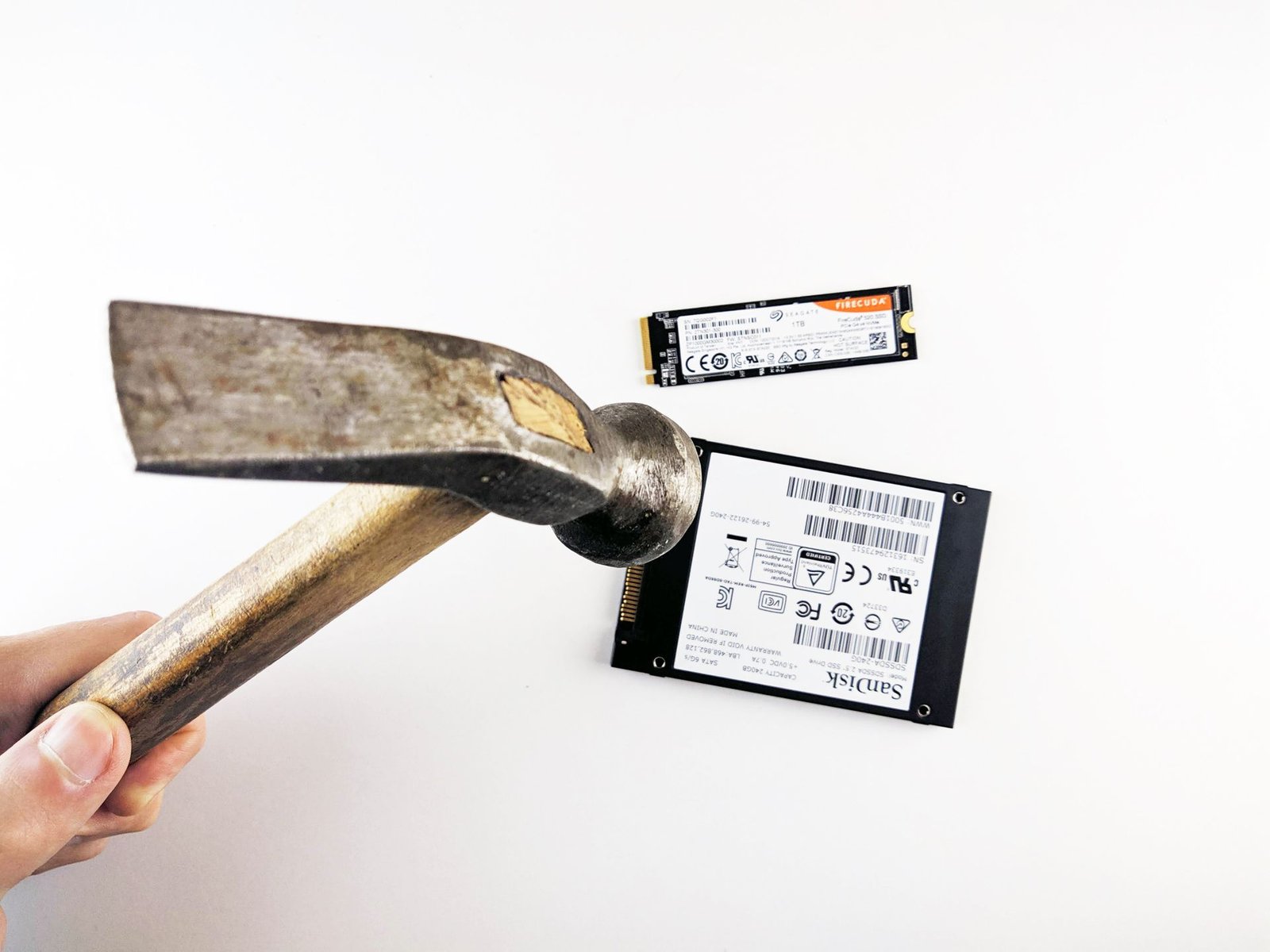
- 2.5-inch SATA SSDs look like small hard drives and plug into the same ports. They are limited by the SATA interface’s speed ceiling, but that ceiling is still several times higher than any hard drive. The easy, universal upgrade for older machines.
- M.2 SATA SSDs are gumstick-sized drives that use the SATA protocol in a smaller package — same speed as 2.5-inch SATA, less space and no cables.
- M.2 NVMe SSDs are the same gumstick size but speak NVMe over PCI Express lanes, reaching speeds several times beyond SATA. This is the modern standard for new computers.
- Generations matter (a little). NVMe drives come in generations (3.0, 4.0, 5.0), each doubling theoretical speed. In daily use, the differences between generations are modest — any NVMe drive feels instant; newer ones help most with huge file transfers and heavy creative workloads.
What to buy: for a new build or recent machine, an NVMe drive of the current mainstream generation hits the sweet spot. For reviving an older SATA-only machine, a 2.5-inch SATA SSD delivers the transformative upgrade at the lowest cost. Always check your motherboard or laptop manual for which slots and protocols it supports before ordering.
External SSDs vs External HDDs: Portable Storage
The ssd vs hdd choice extends to portable drives, with the same trade-offs in miniature:
- Portable HDDs offer terabytes cheaply — ideal for backups, media libraries, and archiving on the go. Their weaknesses travel with them: slower transfers, vulnerability to drops, and the occasional worrying click.
- Portable SSDs are smaller, lighter, silent, drop-resistant, and dramatically faster — ideal for working directly off the drive (video editing, large photo libraries), frequent travel, and anything where waiting on transfers wastes your time.
Interface note: a portable SSD is only as fast as its connection. USB-C ports with modern USB speeds let SSDs stretch their legs (my USB-C explained guide covers which port speeds mean what); plugged into an old slow port, even the fastest drive waits on the cable. For HDDs the port rarely matters — the drive itself is the bottleneck.
Rule of thumb: backups and bulk archives go on portable HDDs; active work and travel go on portable SSDs.
Upgrading: Breathing New Life Into an Old Computer
If you own a computer still running on a hard drive, an SSD upgrade is the highest-value improvement you can make — often transforming a machine that felt ready for retirement into one that feels new. A few practical notes:
- Check compatibility first. Older laptops and desktops use 2.5-inch SATA drives (a SATA SSD drops right in); newer machines use M.2 slots (SATA or NVMe — check your manual for which). When in doubt, look up your exact model’s specifications.
- Clone or fresh install? Cloning copies your existing system to the new drive (fastest path back to familiar); a fresh OS install is cleaner but means reinstalling programs. Cloning software is widely available and usually free with the drive.
- Keep the old HDD as backup storage. Put it in an inexpensive external enclosure and you have a free backup drive — the perfect partner for your new SSD.
- Desktops can run both. Add an SSD for the system while keeping the HDD for storage — the best of both worlds with no compromises.
Even a basic SATA SSD delivers the transformative part of the upgrade. Do not overspend on a top-tier NVMe drive for an older machine that cannot use its full speed — save the difference.
Key Takeaways
- The ssd vs hdd divide is mechanical versus electronic storage: spinning platters and moving heads versus flash chips with no moving parts.
- SSDs are dramatically faster, more durable, silent, and power-efficient — the clear choice for operating systems, programs, and laptops.
- HDDs offer far more capacity per dollar, making them ideal for media libraries, backups, and archives where speed does not matter.
- SSD wear (measured in terabytes written) is a non-issue for normal use; HDDs wear mechanically and dislike drops and vibration.
- The classic desktop setup — SSD for system, HDD for bulk storage — gives you the best of both technologies.
- Upgrading an old HDD-based computer to an SSD is the single most transformative upgrade available; keep the old drive as backup storage.
Frequently Asked Questions
Is SSD really that much faster than HDD in real use?
Yes — it is the most noticeable upgrade in computing. Boot times drop from minutes to seconds, programs open almost instantly, and the whole system stays responsive under multitasking. The difference is not subtle or benchmark-only; you feel it in the first hour.
Do SSDs last longer than HDDs?
For typical use, yes in practice. SSDs have no mechanical parts to wear out or break in drops, and their write-endurance ratings far exceed normal consumer workloads. HDDs can last many years too, but they are vulnerable to physical shock and mechanical wear. Either way, keep backups — both technologies can fail.
Should I get SSD or HDD for gaming?
SSD, without question. Games load dramatically faster, open worlds stream assets without stuttering, and modern games increasingly expect SSD speeds. A large HDD remains useful as cheap overflow storage for a game library, with active games kept on the SSD.
Can I replace my laptop’s HDD with an SSD myself?
Usually yes, and it is one of the most beginner-friendly upgrades: typically a few screws, swap the drive, and either clone your old system or install fresh. Check your model’s drive type (2.5-inch SATA or M.2) and whether the manufacturer considers it user-serviceable before you start.
Is it worth keeping my old hard drive after upgrading?
Absolutely — put it in an inexpensive external enclosure and use it for backups. It pairs perfectly with your new SSD: fast primary storage plus capacious backup storage, and you already own the drive.
Does an SSD use less battery than an HDD in a laptop?
Yes. With no motor to spin and no head to move, SSDs draw noticeably less power than hard drives, especially during active use. Combined with the fact that tasks finish faster (letting components idle sooner), SSD laptops consistently get better battery life than their HDD equivalents — one more reason the laptop decision is not close.
Conclusion
The ssd vs hdd debate has a clear structure once you see it: SSDs win everywhere speed, durability, silence, and efficiency matter — which covers your operating system, your programs, your laptop, and anything you carry around. HDDs win where capacity per dollar is the only thing that matters — media archives, backups, and bulk storage that sits still.
Buy accordingly: an SSD for everything you interact with, an HDD for everything you merely store. And if you are still running a computer on a spinning drive, know that the most dramatic upgrade in computing is sitting one screwdriver away.