

The first time I typed on a proper mechanical keyboard, I understood within about thirty seconds what the fuss was about — and I also realized I had no idea what any of the words describing it meant. If that is where you are now, this mechanical keyboard beginners guide is for you: a plain-language tour of switches, layouts, keycaps, and sounds, written for someone buying their first board rather than their fifteenth.
Here is the one-sentence version: a mechanical keyboard gives every key its own individual spring-loaded switch instead of a single rubber membrane underneath, which makes typing feel more precise, sound more satisfying, and last far longer. Everything else — the switch colors, the layouts, the keycap materials — is about tuning that core idea to your taste. By the end of this guide you will know exactly what to look for and, just as importantly, what to ignore for now.
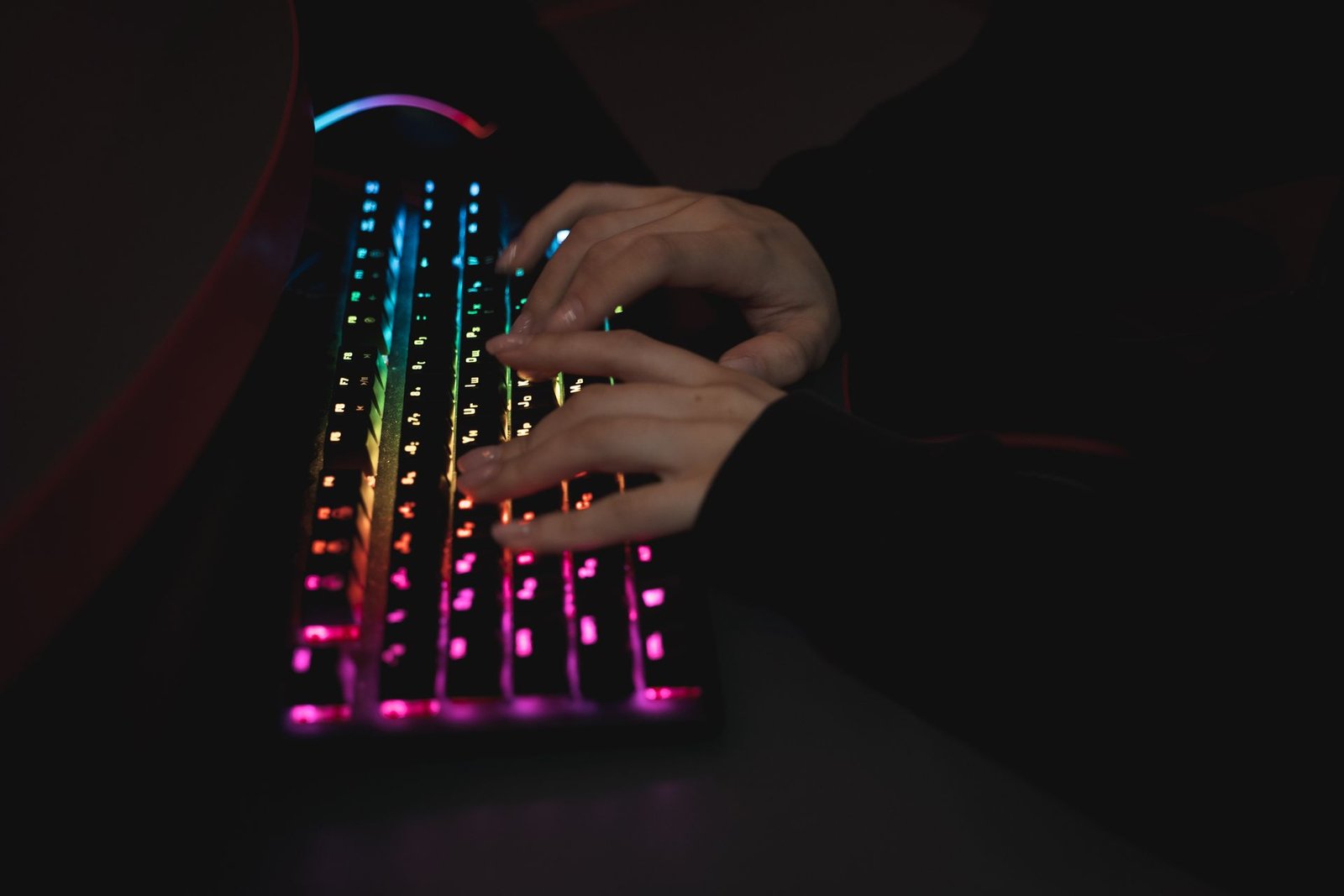
Mechanical Keyboard Beginners Guide: What Makes Them Different
Most keyboards that come bundled with computers — and most laptop keyboards — are membrane keyboards: a press collapses a rubber dome that completes a circuit. They are cheap, thin, and quiet, but the feel is mushy, the keys wear unevenly, and when they die, the whole board is done.
A mechanical keyboard replaces that rubber sheet with individual mechanical switches, one per key. Each switch is a self-contained unit with a spring, metal contacts, and a stem that the keycap sits on. This changes three things:
- Feel. Every keypress has a defined, consistent character — smooth, bumpy, or clicky — instead of a vague squish. Your fingers get clear feedback on every press.
- Durability. Quality switches are rated for tens of millions of keypresses per key, versus a few million for typical membrane boards. A good mechanical keyboard can last a decade or more of heavy use.
- Repairability and customization. On many boards you can pull out individual switches and keycaps and replace them. A worn key does not mean a dead keyboard.
The trade-offs are real too: mechanical boards cost more, are usually thicker and heavier, and can be loud — which matters if you share a room or take calls at your desk. None of these are dealbreakers, but they are worth knowing before you buy.
How a Switch Actually Works
You do not need an engineering degree, but a basic mental model helps everything else click. Inside each switch:
- A stem (the colored plastic plunger the keycap mounts on) sits above a metal spring.
- Pressing the key pushes the stem down, compressing the spring.
- Partway down, metal contact leaves meet and the keystroke registers — this is the actuation point.
- Releasing the key lets the spring push everything back up.
Two numbers describe any switch: actuation force (how hard you must press, measured in grams) and travel distance (how far the key moves, usually around 4 mm total with actuation at about 2 mm). Lighter switches (around 45 g) feel effortless and fast; heavier ones (60 g and up) feel more deliberate and resist accidental presses. Neither is objectively better — it is about your fingers and your typing style.
The shape of the stem’s rails determines the switch’s personality: whether the press feels smooth all the way down, has a noticeable bump, or makes an audible click. That personality is what the famous color names describe.
The Three Switch Families: Linear, Tactile, and Clicky
Almost every switch you will encounter belongs to one of three families. Learn these and you have learned 80% of what matters.
Linear switches press straight down with no bump and no click — smooth from top to bottom. They are the favorite of gamers because the consistent press enables rapid repeated keystrokes, and many fast typists love them too. The classic example is the Cherry MX Red family and its many clones. Downside: without tactile feedback, it is easier to bottom out hard (slamming keys to the base), which some find tiring and loud in its own way.
Tactile switches add a noticeable bump partway through the press — you feel exactly when the key actuates without needing to bottom out. The Cherry MX Brown family is the famous entry point. Tactiles are the most popular choice for general typing and office work: the feedback improves accuracy for many people, and they are quieter than clicky switches since there is no deliberate click mechanism.
Clicky switches add both a tactile bump and a sharp audible click at actuation, via a dedicated click mechanism inside the switch. The Cherry MX Blue family is the iconic example. The sound and feel are deeply satisfying to many enthusiasts — and deeply annoying to coworkers, roommates, and microphones. Clicky boards are best for private spaces.
A beginner-friendly way to remember: linear is smooth, tactile is bumpy, clicky is bumpy and loud. When in doubt, start tactile — it is the middle path that offends nobody and teaches your fingers what feedback feels like.
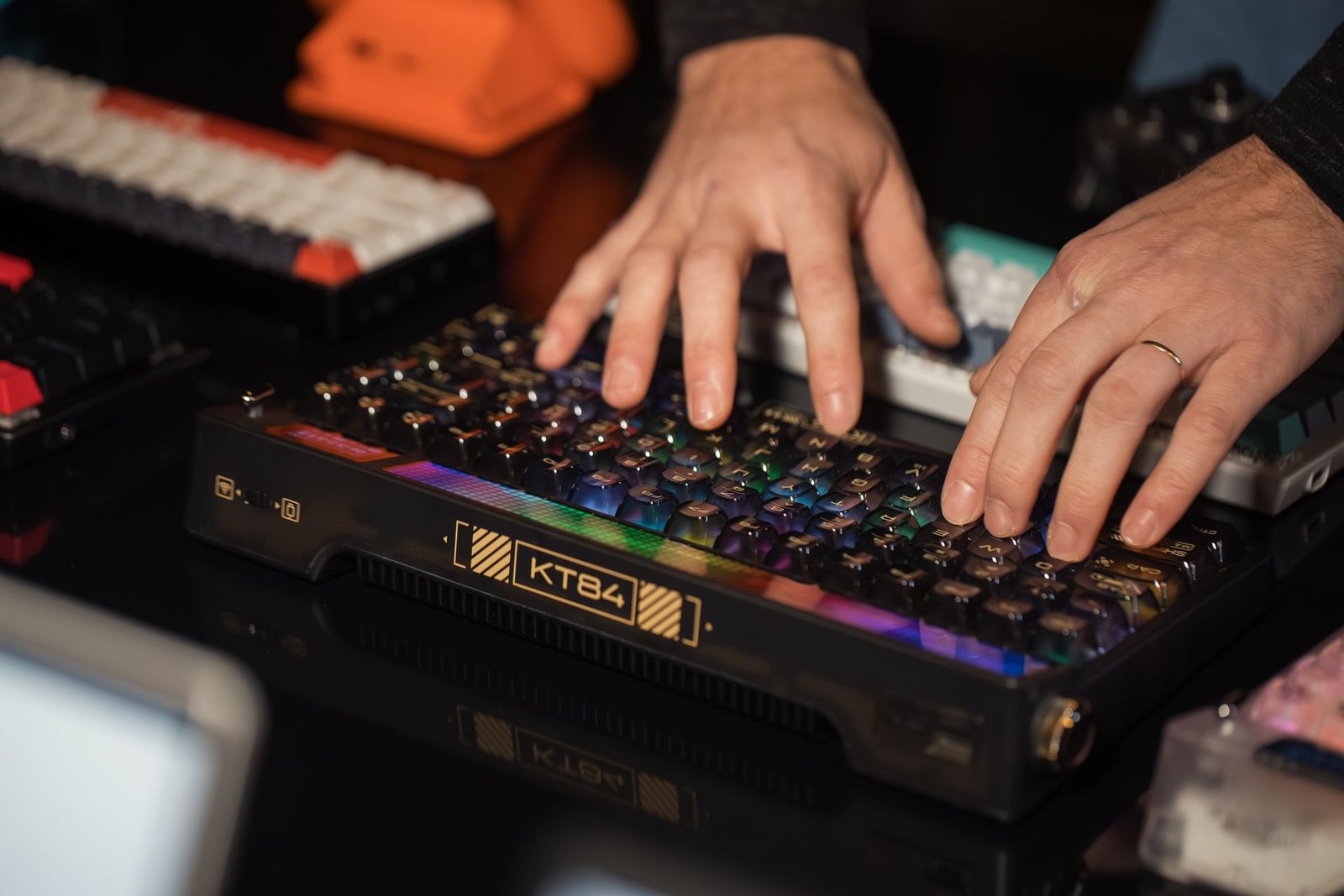
Choosing Your First Switch: Feel, Sound, and Neighbors
Theory is nice, but you have to pick one. Here is practical guidance:
If you have never tried any: start with a medium-weight tactile switch (the Brown-style family). It gives you feedback without noise, suits both typing and gaming reasonably, and if you later discover you prefer linear or clicky, you will know why — which is valuable knowledge for your second board.
If you share your space: avoid clicky switches unless you have a private room. Tactile or silent linear switches keep the peace. Note that “silent” variants exist with dampened stems — they genuinely reduce noise, though no mechanical board is whisper-quiet.
If you type all day for work: many writers and programmers land on tactile or light linear switches. Heavy switches can fatigue fingers over long sessions; very light switches can cause accidental keypresses if you rest your fingers on the keys. The middle of the range is the safe zone.
Try before you buy if you can. Switch tester kits — small boards with a dozen different switches — cost little and answer the feel question definitively. Typing on a switch for two minutes teaches more than two hours of reading descriptions. Some electronics stores also have display boards you can try.
Brand names decoded: Cherry MX is the original German standard whose color names (Red, Brown, Blue) became the industry’s shorthand. Gateron, Kailh, and other manufacturers make compatible “clones” that are often smoother or cheaper — a “Gateron Brown” behaves like a Cherry MX Brown. For a first board, any reputable manufacturer’s version of your chosen family is fine; do not pay a premium for the original name alone.
Layouts and Sizes: How Many Keys Do You Need?
Keyboards come in sizes defined by what they leave out. The names are confusing at first, so here is the map:
- Full-size (100%) has everything: letters, numbers, function row, navigation cluster, and a numpad. Best if you enter lots of numbers or simply want zero compromises. The downside is width — it pushes your mouse far to the right, which can strain your shoulder.
- Tenkeyless / TKL (80%) drops the numpad but keeps everything else. The sweet spot for most people: full functionality in a narrower board that brings the mouse closer.
- 75% compresses the navigation cluster into the main block — nearly TKL functionality in a smaller footprint. Very popular with enthusiasts, though keycap compatibility can be slightly trickier.
- 65% drops the function row too, keeping arrows and a few navigation keys. Compact and clean, but you will use a function layer (holding Fn to access F-keys and other missing keys).
- 60% is letters, numbers, and modifiers only — everything else lives on function layers. Loved by minimalists and travelers; demanding for anyone who uses F-keys or arrows constantly.
For a first board, I recommend tenkeyless or 75%: you lose nothing you use daily (unless you live on the numpad), gain desk space, and keep a standard layout that fits replacement keycap sets easily. Exotic small layouts are wonderful second boards once you know your habits.
One more layout note: check whether the board uses a standard bottom row (uniform key sizes on the spacebar row). Non-standard bottom rows make finding replacement keycaps difficult — a real annoyance if you catch the customization bug later.
Keycaps: The Part You Touch and See
Keycaps are the plastic covers on the switches — what your fingers actually touch and what gives the board its look. Two things matter:
Material. The two common plastics are ABS and PBT. ABS is smoother, shows shine from finger oils over time, but allows crisp backlight shine-through legends. PBT is more textured, resists shine far longer, and feels more premium — most enthusiasts prefer it. For a first board, PBT is the easy recommendation if the price is close.
Profile and legends. Profile is the shape/height of the keycaps (OEM, Cherry, XDA, and others) — it subtly changes typing feel and sound. Do not overthink this for a first board; the stock profile is fine. Legends are the printed letters: check they are legible and durable (dye-sublimated or double-shot legends last far longer than pad-printed ones that wear off).
Keycap sets are also the cheapest way to transform a board’s look later — a thirty-minute swap gives you a visually new keyboard. That upgradability is part of the hobby’s appeal.
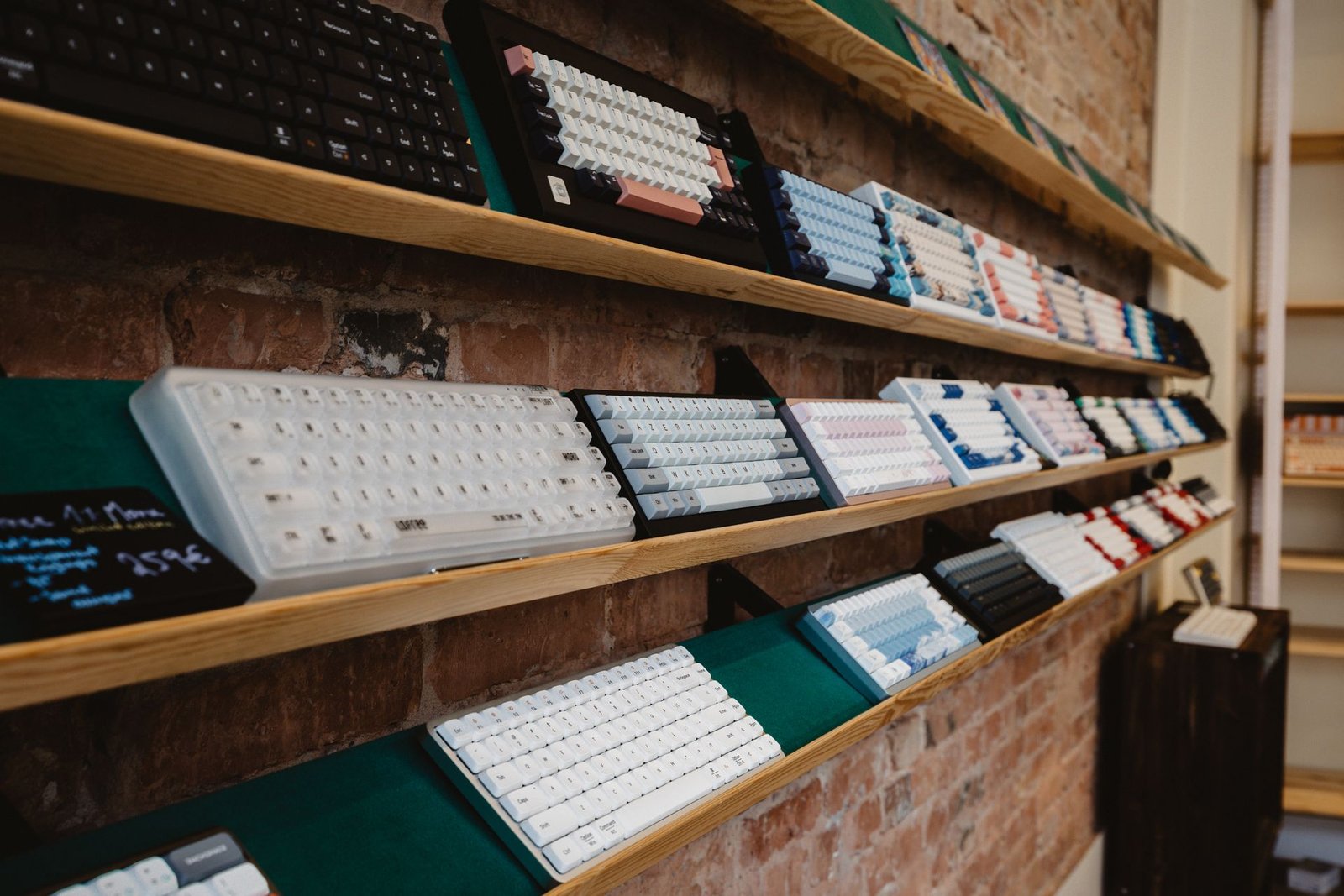
What Else Matters: Stabilizers, Case, Sound, and Connection
Beyond switches, layout, and keycaps, a few components separate pleasant boards from rattly ones:
Stabilizers are the mechanisms under long keys (spacebar, Enter, Shift, Backspace) that keep them level. Bad stabilizers rattle and ruin an otherwise good board; good ones make long keys feel as crisp as single keys. This is the most common quality complaint in reviews — if reviewers praise the stabilizers, that is a strong buy signal.
Case and mounting shape the sound more than beginners expect. Plastic cases sound higher-pitched; aluminum cases sound deeper and feel more solid. How the plate and PCB sit inside the case (various “mount” styles) further tunes the acoustics. You do not need to master this — just know that two boards with identical switches can sound quite different, which is why sound-test videos exist.
Connectivity. Wired USB-C is the reliable default. Many boards now offer Bluetooth and 2.4 GHz wireless too — convenient for tidy desks and switching between devices, at the cost of battery management and occasional latency. For gaming or a primary work board, wired remains the safest choice; for casual multi-device use, wireless flexibility is lovely.
Hot-swap vs soldered. Hot-swappable boards let you pull switches out and push new ones in with no soldering — you can change your mind about switches later for the price of a switch set. Soldered boards lock in your choice permanently. For a first board, hot-swap is strongly recommended: it removes the fear of choosing wrong.
Backlighting and software. RGB lighting is fun and genuinely useful in dark rooms. Check whether the board’s software (for remapping keys and macros) is decent and available for your operating system — some configuration tools are Windows-only, which matters for Mac and Linux users.
Taking Care of Your Board
Mechanical keyboards reward a little maintenance. Shake out or blow away dust and crumbs regularly — debris under keycaps is the most common cause of a key feeling “off.” Every year or so, pull the keycaps (a cheap keycap puller costs almost nothing) and clean underneath with a soft brush; it takes ten minutes and makes the board feel new. If a single switch starts misbehaving, hot-swap boards let you replace just that switch in seconds. Spills are the real enemy: liquid can kill switches and short the PCB, so keep drinks at a safe distance. With basic care, your first board will still be going strong when you are shopping for your third.
Buying Your First Board: A Practical Checklist
Putting it together, here is how I would shop for a first mechanical keyboard:
- Set the budget. Good starter boards live in the entry-to-mid price range. You do not need an expensive custom kit to get an excellent first experience — the differences at the high end are about refinement, not fundamentals.
- Pick the switch family. Tactile for the safe middle path, linear for gaming and speed, clicky only if you have a private space. Medium weight (around 45–60 g) is the beginner zone.
- Pick the layout. Tenkeyless or 75% for most people; full-size if you live on the numpad.
- Demand hot-swap. It makes your first choice reversible and your board future-proof.
- Check the stabilizers in reviews. Rattly spacebars are the number one regret.
- Verify OS compatibility of any configuration software, and confirm the connection type suits your desk (wired, wireless, or both).
Pair your new board with a sensible setup: it complements a good laptop for programming nicely, and the typing comfort pays dividends in any code editor you live in.
What to ignore for now: exotic switch materials, custom cables, artisan keycaps, lubricating switches yourself, and group buys with six-month waits. The hobby goes deep — enjoy the shallow end first. A solid, standard, hot-swappable board teaches you what you actually like, and that knowledge makes every future purchase smarter.
Key Takeaways
- A mechanical keyboard gives each key its own switch, delivering better feel, longer life, and repairability than membrane boards.
- Switches come in three families: linear (smooth), tactile (bumpy), and clicky (bumpy and loud) — tactile is the safest first choice.
- Medium-weight switches suit most beginners; try a switch tester if you can before committing.
- Tenkeyless or 75% layouts suit most people; full-size only if you live on the numpad.
- Choose hot-swappable boards so your first switch choice is reversible, and check stabilizer quality in reviews.
- PBT keycaps resist shine longer than ABS; standard bottom rows keep future keycap upgrades easy.
Frequently Asked Questions
Are mechanical keyboards better for typing?
For most people, yes — the defined feel of each keypress gives clearer feedback than mushy membrane keys, which many typists find improves both comfort and accuracy. The best switch type is personal, but tactile switches are the most popular starting point for typists.
Are mechanical keyboards too loud for an office?
Clicky switches are too loud for shared spaces, but tactile and linear switches at normal typing volume are generally office-acceptable — comparable to firm typing on any keyboard. Silent switch variants reduce noise further. Your typing force matters more than the switch: heavy bottoming-out is loud on any board.
What is hot-swap and do I need it?
Hot-swappable keyboards let you pull out switches and push in new ones without soldering. For a first board it is strongly recommended because it makes your switch choice reversible — if you discover you prefer a different feel, you swap switches instead of buying a new keyboard.
How long do mechanical keyboards last?
Quality mechanical switches are rated for tens of millions of keypresses per key, and the boards themselves are built to be repaired — individual switches and keycaps can be replaced. A good mechanical keyboard commonly lasts a decade or more of daily use, far outliving typical membrane keyboards.
Do I need an expensive keyboard to get the benefits?
No. The core benefits — better feel, durability, and repairability — are available in affordable starter boards. Expensive custom keyboards offer refinements in sound, materials, and aesthetics, but a solid entry-level hot-swappable board delivers the essential experience.
Conclusion
This mechanical keyboard beginners guide boils down to a simple recipe: pick a switch family that suits your space and fingers (tactile if unsure), choose a tenkeyless or 75% layout, insist on hot-swap, and check stabilizer quality in reviews. Everything else — the keycap materials, the case acoustics, the deep rabbit hole of switch collecting — can wait until you know what your fingers actually like.
Your first board does not need to be your last board, and it should not be your most expensive one. Buy something solid and standard, type on it for a few months, and pay attention to what you wish were different. That attention is the whole hobby: a keyboard tuned to your hands, one small discovery at a time.